Counter App

A Research Tally Counter for Android
Key takeaways
A research tally counter app replaces several mechanical clickers with one phone. In Counter App — Tally & Clicker for Android, each behaviour code becomes a tag inside a session counter, every tap and correction is timestamped, timers fix session length, volume keys allow eyes-free counting, and Events export to CSV or Excel for analysis.
- A research tally counter needs to count several categories independently, log corrections visibly, record time, resist accidental input, work eyes-free and export cleanly.
- Counter App — Tally & Clicker turns an ethogram into tags inside one counter per session or subject, with every tap and every minus correction timestamped in history.
- Volume-key counting in Counter App gives two eyes-free inputs, even with the screen locked, so studies with more codes still need the screen.
- Counter App records counts and timestamps but does not calculate inter-observer agreement; observers export Events to CSV or Excel and compare them in statistics software.
- Observational data in Counter App is stored on the phone with no account and no Counter App cloud, which places backup and retention duties on the researcher.
A mechanical clicker is a lovely tool. It fits in a palm, works by feel, never needs charging and never crashes. It also counts exactly one thing. The moment a study needs two categories, researchers start juggling two clickers, or a clicker and a pencil, and the error rate climbs.
Multi-tally counters on a phone grew out of that problem. This article looks at what a research tally counter needs to do, how Counter App by GiveMeMood on Android maps to those needs, and where its limits are.
What a research tally counter needs to do
Strip away the features that sound nice and a research counter needs to get a handful of things right:
- Count several categories at once, each independently, with clear separation between them.
- Correct mistakes visibly, so a minus is a recorded correction rather than a vanished tap.
- Record time, both for each observation and for the session as a whole.
- Resist accidental input, because phones live in pockets and gloved hands.
- Work without looking, for observations where eyes must stay on the subject.
- Export cleanly, into a format statistics software reads.
- Keep data local and under the researcher's control, which matters for ethics approvals and field sites without signal.
A mechanical clicker scores well on 4 and 5 and poorly on the rest. Paper scores well on 7 and poorly on 3 and 6.
How Counter App maps to those needs
The app is organised as counters containing tags. Counters are unlimited. Each tag inside a counter is a category with its own value, step, target, color, timer, stopwatch, notes and optional location and barcode.
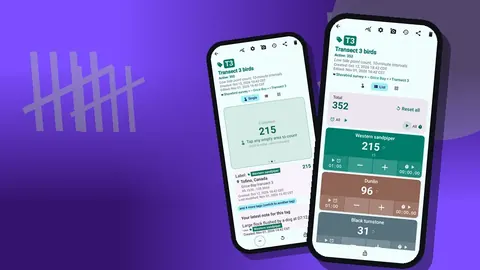
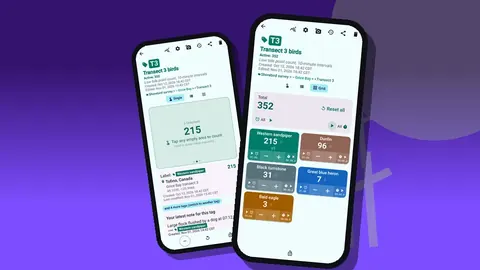
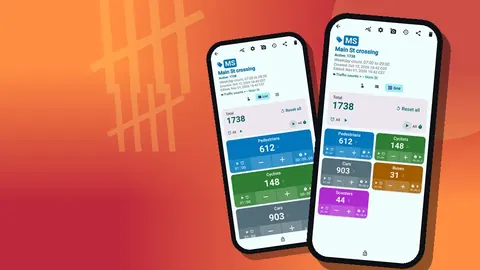
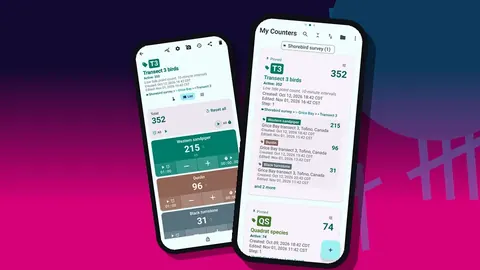
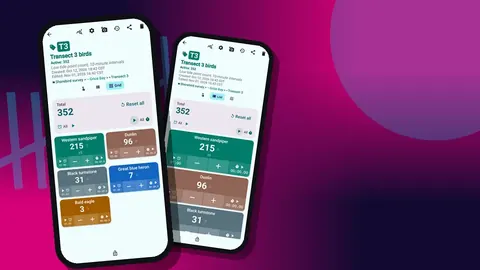
- Several categories: tags appear in Single, List or Grid view. List view shows each tag as a row with its own minus and plus buttons; Grid view shows colored tiles.
- Visible corrections: minus is a logged event, shown in history with time and before and after values.
- Time: every count is timestamped, and each tag has a timer and stopwatch.
- Accidental input: counters can be locked, and targets can auto-lock.
- Eyes-free: volume keys can count, including with the screen locked, and feedback can be a vibration only.
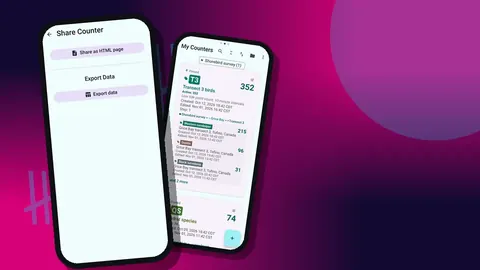
- Export: CSV, Excel and an HTML report.
- Local data: counts are stored on the phone, with no account and no Counter App cloud.
How do you design an observation session?
Start from your ethogram or coding scheme. Each behaviour code becomes a tag; each observation session or subject becomes a counter.
Keep the code list short enough to fit on screen in the view you will use. Six to ten codes fit comfortably in Grid view on most phones; longer schemes are easier in List view, or with tags collapsed except the most recent one.
Give mutually exclusive codes clearly different colors. Similar shades are a common cause of mis-taps when attention is on the subject. Use the step only if your scheme counts in fixed units; for frequency counts, step 1 is right.
The counter description is a good place for the session protocol ("focal animal, 10 min, all occurrences of codes A to F") so the context exports with the data.
Session length and intervals
For a fixed-duration session, set a tag timer to the session length. Presets cover 30 seconds and 1, 2, 3, 5 and 10 minutes, and other lengths can be typed. Countdown beeps warn of the end, and seven alarm sounds and eight alarm vibrations are available, so you can choose a silent vibration if sound would disturb subjects.
For interval sampling, where observers record within repeated short windows, use a short timer and reset it at each interval. Timers can be reset individually or all at once. The stopwatch records elapsed time when the protocol is open-ended, for example "observe until the subject leaves".
A practical caution: the app counts, it does not enforce your sampling rule. If your method is instantaneous scan sampling, the discipline of recording only at the beep is still yours.
Counting without looking
Volume-key counting is off by default and enabled in settings. Once on, the volume keys count even in the background and on the lock screen, through a foreground service. Keys can be remapped, with separate sound and vibration per key. A lock-screen notification adds minus, plus and stop buttons.
Volume keys give you two inputs, which suits studies with one main code plus corrections, or two codes. For more codes you still need the screen. Some devices briefly display the system volume bar, which does not affect counting.
Feedback options include 13 count sounds and 8 vibration styles. A distinct vibration for plus and minus helps you feel which key you pressed.
Piloting the setup
Never run a study on an unpiloted setup. A short pilot, ideally with video so you can recount, shows:
- whether codes are easy to hit at speed;
- whether colors are distinguishable in field light;
- whether the timer signal is noticeable but not disruptive;
- how often minus corrections occur.
Afterwards, open history. Every event shows time, step, before and after values and tag label. Clusters of minus events on one code suggest it is placed badly or confused with a neighbour. History cannot be searched, so for long pilots export Events and filter in a spreadsheet.
Reading a session at a glance
The dashboard summarises a counter with total and target, increments against decrements, a seven-day activity bar chart and a pie chart by tag. Right after a session, the pie chart gives a quick check that the behaviour mix looks plausible. A session where one rare behaviour suddenly dominates is worth a second look before you rely on it.
This is a sanity check, not analysis. Rates, bout lengths and comparisons belong in your statistics software.
Inter-observer work
Reliability checks need two observers coding the same sessions independently. With separate phones:
- Build one template counter and share it as a backup ZIP so both observers have identical tags.
- On import, the preview shows contents and handles duplicates by replace, copy or skip.
- Each observer codes the session on their own phone.
- Both export the Events section to CSV or Excel.
- Align the files by timestamp and calculate agreement in your analysis software.
The app does not calculate agreement statistics. There is also no live sync between phones, so start the session at an agreed signal, which helps when aligning timestamps later.
Organising a whole study
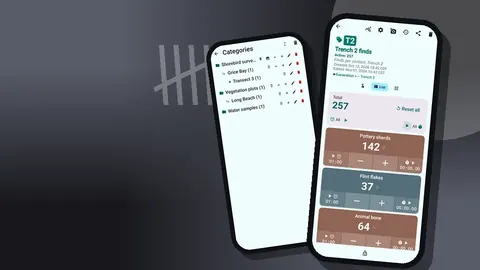
A study with many subjects and sessions quickly produces dozens of counters. Categories nest up to three levels, for example Study → Group → Subject, with colors and pinning. The counter list offers search, a date-range filter and six sort orders, which make it easy to find yesterday's sessions or one subject's counters.
Name counters by a fixed pattern such as "G2-S07-2026-05-14" so sorting by name produces a sensible order and the name itself carries the key variables into the export.
Where is observational data stored, and who is responsible for it?
Ethics committees and data management plans often ask where observational data is stored. Here the answer is short: on the phone, with no account and no Counter App cloud, because the app ships no sync code. The app goes online only for optional notifications, update checks and map tiles. If Android device backup is switched on, though, the system may copy app data to the backup account linked to the phone.
That places responsibility on you. Make a backup ZIP after each session day, choosing only the study's counters or categories if the phone holds other data, and move it to the storage your plan specifies. If subject names are sensitive, use codes for counter names from the start, since names travel into every export and backup.
Deleted counters go to the trash and can be restored, which protects against slips. When your data plan sets retention rules, check how they apply to backups and exported files as well as to the phone.
What are the limits of a phone tally counter for research?
- Not a full event recorder. It logs counts with timestamps, not durations of states. For state behaviours, use the stopwatch and notes, or a dedicated event-recording tool.
- Two physical keys. Eyes-free counting covers two inputs at most.
- No live sync. Multi-phone studies merge data afterwards.
- History is not searchable in the app.
- Battery and screen. A phone needs charging, and a mechanical clicker does not.
A hypothetical study
Suppose a student is studying vigilance in a flock of ducks on a park pond. Each session is a counter named by date and focal bird, with four tags: head-up scan, foraging bout, preening and aggressive interaction. A 5-minute timer runs per session, volume up counts head-up scans eyes-free, and the other three codes are tapped on screen. After each day the student checks history, locks finished sessions and exports Events as CSV. A labmate codes three sessions in parallel for reliability. This study is illustrative and none of its numbers come from real data.
Practical details
- Android 12 and up; free to download with no ads; try it free for 3 days, then choose a yearly or monthly plan or a one-time lifetime purchase.
- Works offline for all counting features.
- Nothing deleted is lost at once: counters wait in the trash and can be restored.
- 37 languages, with an in-app picker.
Get the app at counterapp.online.
Frequently asked questions
How many behaviour codes can one research counter hold?
Counters are unlimited, and each counter can hold many tags, each with its own value, step, target, timer and stopwatch.
Can a tally counter time fixed-length observation sessions?
Yes. Each tag has a timer with presets of 30 seconds and 1, 2, 3, 5 and 10 minutes, or a manual duration, plus a stopwatch.
How can accidental counts be avoided during an observation?
Lock a counter against accidental taps, and use auto-lock on a target. Every count is logged, so stray taps can be found and corrected.
Does a research tally app need a subscription?
Not necessarily. Counter App — Tally & Clicker is free to download with no ads; try it free for 3 days, then choose a yearly or monthly plan or a one-time lifetime purchase.
Does the tally counter compute inter-observer agreement?
No. Counter App records counts and timestamps; agreement statistics are calculated afterwards from the exported CSV or Excel files.
What should a data management plan say about where tallies are stored?
Counter App stores counts on the phone, needs no account and has no Counter App cloud. If Android device backup is switched on, the system may copy app data to the user's backup account, so plans should cover that setting as well as exports.
Can the app record how long a behaviour state lasts?
Not as an event recorder does. Counter App logs counts with timestamps, so state durations need the stopwatch and notes or a dedicated event-recording tool.