Counter App

Event Photography Shot Checklist and Coverage Counter
Key takeaways
An event photography shot checklist works best when it follows the event timeline and separates fixed moments, group photos and coverage items. In Counter App — Tally & Clicker each item is a tag with a target, auto-lock protects captured moments, and a quick gap check at every break shows what is still missing.
- An event photography shot checklist splits into three kinds of items: fixed moments, group photos and coverage, each needing different targets.
- Counter App — Tally & Clicker can auto-lock a checklist tag once its target is reached, so a captured ring exchange cannot be bumped later in the evening.
- A gap check at each pause in a wedding or gala, looking only for items at zero or below target, should take under a minute.
- Counter App does not sync live between phones, so a second shooter receives the event checklist as a ZIP backup imported before the day.
Events do not repeat themselves for the photographer. The first kiss happens once. The keynote speaker leaves the gala when her car arrives, whether or not you have her with the award winners. The venue raises the house lights on schedule. Event work is a long list of required moments with a short window for each, and the difficult part is rarely shooting them. The difficult part is knowing, at 8:47 pm with a full card and a dry throat, what is still missing.
A paper shot list in a jacket pocket helps until it gets damp, creased or left on a chair. What follows is a phone-based checklist built around one habit: tick each required item the moment you have it, and look for gaps at every natural break. The examples use Counter App on Android, but the method stands on its own.
Three kinds of checklist items
Event shot lists mix things that behave very differently. Treating them all as identical ticks is why some of them get missed. Sorting the list into three kinds before the day makes it readable under pressure.
Fixed moments. Processional, ring exchange, first dance, the cake cut, award presentations, the CEO's welcome. They happen at a known time, last seconds to minutes, and are either captured or lost. There is no "a bit more" of a ring exchange.
Group photos. Family combinations, bridal party, department teams, sponsor line-ups, the board with the guest of honour. These are the items most often missed, because the people involved drift to the bar, the toilets or the car park while you are working through the previous group.
Coverage items. Venue exterior, table settings, florals, food, signage, candid guests, dance floor. Timing is flexible, but the client still expects a reasonable amount, and "reasonable" should be a number you agreed in advance.
The three kinds need different targets and different checking rhythms, which is why they are worth separating.
How do you build an event shot list from the timeline?
Start with the planner's run sheet or the client's schedule, not with a generic list from the internet. Go down the timeline and, for each block, write the fixed moments that happen in it, the groups that become possible in it, and the coverage that is easiest to get during it. Table settings are easiest before guests sit down. Exterior shots are easiest in the last good light. Family groups are easiest straight after the ceremony, while everyone is still in one place.
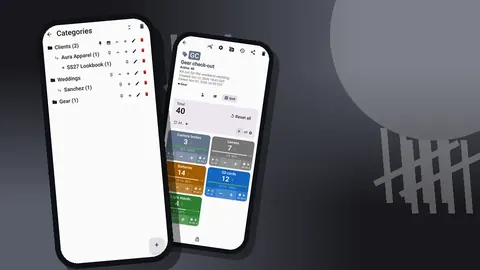
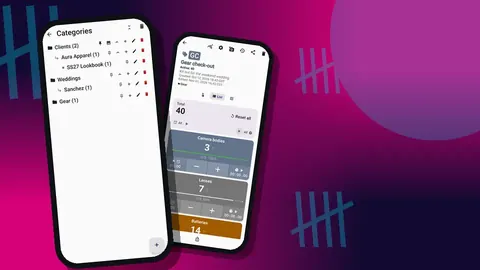
In Counter App, create one counter for the event, named with the client and date so it is easy to find later. Use the counter's description for the planner's name and phone number, and the link field for the shared shot list if the client sent one. If you shoot a lot of events, a nested category such as "Events > Weddings > 2026" keeps the counter list from becoming a wall of names. Categories go three levels deep, take their own colors and can be pinned, so the current season sits on top.
One tag per checklist item
Inside the event counter, add one tag per item, in timeline order. Tag order matters more than people expect: when the list on screen follows the order of the day, the next item is always near the top of your attention.
Colors carry the three kinds at a glance. One possible scheme is red for fixed moments, blue for groups and green for coverage, but any consistent choice works. The important thing is that you can glance at the screen in a dark reception room and see immediately whether the gaps are red, blue or green.
Name tags the way you would shout them across a room. "Rings" beats "Exchange of rings (ceremony, front angle)". The longer detail belongs in the tag's notes, where it is available when you need it and invisible when you do not. A tag can also carry a location, which is helpful when the ceremony and reception happen at different addresses and the second shooter needs to know where the sparkler exit will be.
Targets, alerts and auto-lock
Targets turn a list of names into a list of progress bars. Set them per kind.
- Fixed moments: target 1. The tag either moved or it did not. One tap means "I have a frame I trust".
- Groups: target 2 or 3. Use the target to mean usable frames, so you only tap when you have checked for closed eyes and turned heads. Two clean frames of a twelve-person group give you a safety margin for retouching.
- Coverage: a modest number. Eight table details, five exterior views, twelve dance floor candids. These are your floors, not your ceilings.
When a tag reaches its target, an optional sound or vibration confirms it. For fixed moments, auto-lock on target is the feature that earns its place: once the ring exchange is captured, that tag locks itself and cannot be bumped while you scramble for the recessional. For coverage tags, leave auto-lock off, because you will often keep shooting past the target when the light is good.
Pick a view you can read one-handed
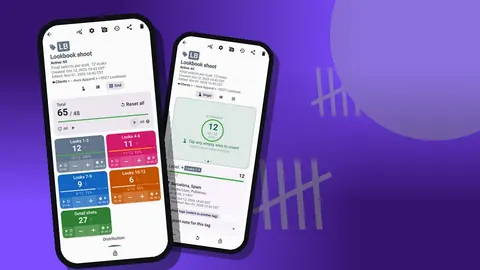
The counting screen shows tags as a single large counter, a list or a grid. For an event checklist with twenty or thirty items, the list view is the most readable: each row shows the value, the target progress and the minus and plus buttons.
Tag display options help on a long list. "Collapsed except most recent" keeps the item you just touched expanded, so you can see its notes, while everything else stays compact. During the ceremony you might prefer everything collapsed, because you only need to see what is zero.
Lock the whole counter whenever the phone goes back in a pocket. A locked counter ignores taps, which matters when the phone is pressed against a camera strap all evening.
Counting with the camera in both hands
For most of an event, both your hands belong to the camera. Counter App can count with the phone's volume keys, also in the background and on the lock screen, through a foreground service. It is off by default; turn it on in settings, choose which key adds and which subtracts, and give each key its own sound or vibration so you know what you pressed without looking. Some devices may still show the system volume bar when you press.
Test the behaviour at home before the event: open the counter in the view you will use, lock the screen, press the keys and check in the history which tag received the counts. Knowing that in advance means you never have to guess at the reception whether a press landed on the right item.
There is also a lock-screen notification with minus, plus and Stop buttons. If an assistant is following you with the phone and logging for you, the notification is often faster than unlocking the screen.
Timers for planner-timed segments
Planners love timed segments: ten minutes with the couple during golden hour, five minutes for the bridal party on the stairs, three minutes for the sponsor wall before the doors open. Every tag on a shoot also carries a separate timer and stopwatch. Choose a preset (30 seconds, 1, 2, 3, 5 or 10 minutes) and start it on the tag for that segment. Countdown beeps warn you as the end approaches, and you can pick an alarm sound and vibration that cut through a noisy room.
The stopwatch is useful the other way round. Running it during family formals tells you how long the sequence really took, which is information you can feed back into the next client's timeline.
How do you check for missing shots at each break?
Most events contain built-in pauses: the cocktail hour, the gap between courses, the band changeover, the moment the speeches end and the dance floor has not filled yet. Treat every pause as a gap check.
Open the counter in list view and look only for items at zero or below target. Then open the dashboard, which shows the counter's total against target, per-tag progress and a pie chart of where your counts have gone. A pie chart dominated by candids while the group tags are thin is a clear signal to change priorities.
A few working rules make the gap check decisive:
- Fixed moments at zero after they have happened are lost. Note them for the client conversation and move on.
- Groups at zero by the second break need action now. Find the coordinator, name the people, ask for five minutes.
- Coverage below target goes on your list for the next quiet patch, ordered by which light it needs.
The check should take less than a minute. If it takes longer, the list is too long or the tags are badly named.
Notes and reference photos for the edit
Context evaporates between the event and the edit. Notes on count events catch it while it is fresh: "man in navy suit is the bride's godfather", "speech two shot from the side, front blocked by the AV desk", "flowers on table 6 were the bride's grandmother's". The All Notes screen gathers every note from the counter in one sortable list, so the edit starts with a briefing instead of guesswork.
Each tag can also hold up to six photos. A phone snapshot of the seating plan, the couple's handwritten list of family groupings or the sponsor logo sheet fits naturally on the relevant tag. The built-in photo editor lets you draw with a brush, add text in several fonts and colors, and rotate the image, so you can circle the two cousins who must not stand next to each other or mark the order of a line-up.
Reading the history after the event
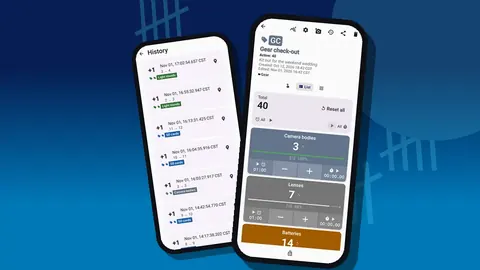
The history log records every count with its exact time, the value before and after, the tag and icons for any attached note, photo or location. After an event this log is more useful than it first looks.
It gives you the true order of coverage, which helps when you build a story-ordered gallery. It shows where coverage was thin, for example a forty-minute stretch with no taps during dinner. And it shows mistakes you corrected on the night, because a minus step is logged just like a plus step. If the client later asks whether the cake cut was photographed before or after the speeches, you have a timestamp rather than a memory.
Exports, backups and the next event
When the event is finished, export the counter. An HTML report with embedded photos and notes makes a readable summary for your own records or for a second shooter. CSV or Excel files suit photographers who track jobs in a spreadsheet. When you export, tick the sections the client needs: Summary, Events, Notes and Locations.
Before reusing the structure for the next event, make a ZIP backup of the finished counter, then reset it. Backups include photos, can be limited to chosen counters or categories, and can compress photos to keep the file small. Importing first shows a preview of the file's contents, where you choose to replace, copy or skip duplicates. Importing as a copy is a tidy way to keep a "template wedding" counter that you duplicate for each new booking.
How can a second shooter use the same checklist?
Counter App keeps its data on the phone and does not sync live between devices, so plan the split before the day. A workable approach:
- Build the event counter on your phone, then share a ZIP backup with the second shooter and have them import it.
- Agree who owns which tags. A common split is that the lead covers fixed moments and the second covers coverage and guest candids, with groups shared.
- After the event, both export Events and Notes, and you compare the two reports while culling.
Clear ownership matters more than any feature. Two people counting the same tag on two phones will produce two different numbers and an argument.
A short pre-event checklist for the checklist
- The counter exists, is named with client and date, and sits in the right category.
- Every timeline block has its fixed moments, groups and coverage items as tags in order.
- Targets are set, with auto-lock on fixed moments only.
- Volume-key counting is enabled and tested with the phone in the pocket you will use.
- Seating plan and family list photos are attached to the right tags.
- A ZIP backup of the template exists in case anything goes wrong.
If you also shoot shorter studio sessions with a fixed shot list, see the shot counter workflow for photo shoots. To keep the event bag itself under control, the photography gear inventory guide covers that side.
Counter App runs on Android 12 and later, works offline for all counting features, and is free to download with no ads; try it free for 3 days, then choose a yearly or monthly plan or a one-time lifetime purchase. Get the app at counterapp.online.
Frequently asked questions
How can a wedding photographer spot missing shots during the reception?
Open the event counter in list view at each break and look for tags still at zero or below target. The dashboard's per-tag progress and pie chart show the same gaps from another angle.
Can event checklist items be ticked off with the volume keys?
Yes. Once enabled in Counter App settings, the volume keys add or subtract on the current counter even from the lock screen. The feature ships switched off, and the key mapping can be swapped.
How do I stop a captured first dance from being counted twice?
Set that tag's target to 1 and turn on auto-lock on target. The tag then locks itself as soon as the moment is logged.
Can a seating plan or family group list live on the event checklist?
Attach a phone photo of it to the relevant tag, which holds up to six. The editor can circle names, add text and rotate the picture.
How does a second shooter get the same event checklist?
Export a ZIP backup of the event counter and have the second shooter import it on their own phone before the day. Agree who owns which tags, because the two phones do not sync.
What targets suit group photos on an event shot list?
Two or three usable frames per group is a common choice, leaving a margin for closed eyes and turned heads. Tap only after checking the frame on the camera.