Counter App

Studio Equipment Tracking for Photography Studios
Key takeaways
Studio equipment tracking stays current when the inventory mirrors the rooms, each booking has an owner and audits are small enough to finish. In Counter App — Tally & Clicker, categories map zones and shelves, booking counters check items back in against targets, and consumable tags count down to a reorder level.
- Studio inventories usually fall behind because nobody owns them, the list does not match the rooms and audits are too big.
- Counter App — Tally & Clicker categories nest three levels deep, enough for a studio structure such as Store > Stands and grip > Shelf 3.
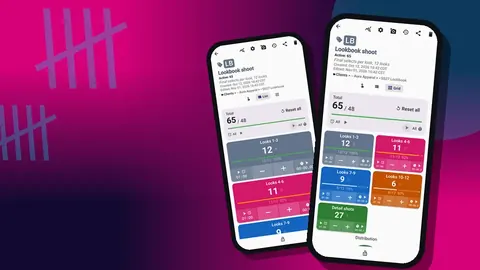
- A booking counter with targets equal to the items pulled shows at wrap whether every strobe and stand came back.
- Counter App runs separately on each phone with no live sync, so many small studios keep one shared studio phone for logging.
A studio grows by accident. Two strobes become a lighting wall, one backdrop becomes a rack of twelve, and a single props shelf turns into a room of its own. Eventually someone asks "do we have another C-stand?" and three people give three answers, all with confidence.
Tracking a studio is different from tracking one photographer's bag. There are more items, more rooms and many more hands touching things, including freelancers and clients who will never learn your system. This guide focuses on that situation: a structure that matches the physical space, labels that make it quick, a booking check-out that catches missing items, and an audit routine short enough to survive a busy month.
Why do studio inventories fall behind?
Studio inventories rarely fail because the tracking is complicated. They fail because of three quieter problems:
- Nobody owns it. Everyone uses the kit, so nobody feels responsible for the list.
- The list does not match the rooms. An alphabetical spreadsheet sends the person auditing back and forth across the building.
- Audits are too big. A full count that takes a day gets postponed until it never happens.
Each section below addresses one of these: a structure that follows the rooms, a check-out that assigns responsibility per booking, and an audit split into zones small enough to finish.
Map the studio first
Walk the space with a notebook and list the zones in the order you naturally walk them: shooting bays, lighting store, grip store, backdrop rack, prop room, office cabinet, kitchen. Note the shelves or racks in each zone, and which zones contain consumables such as paper rolls, gels, tape and batteries.
That list is your structure. Spend the time on it before opening any app, because every later step depends on it.
Mirror the rooms in categories
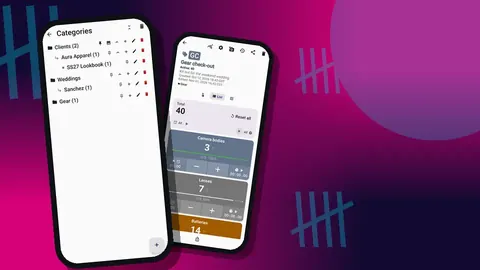
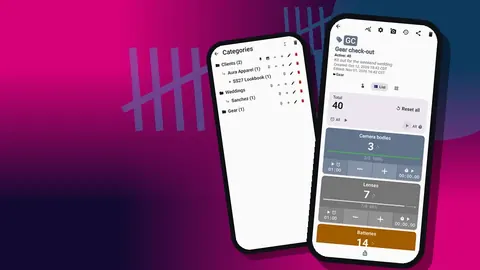
In Counter App, create a category per zone. Under each, add a sub-category by type, and where a zone has numbered shelves, a third level for shelves. Categories go three levels deep, for example:
- Bay 1 > Lighting
- Store > Stands and grip > Shelf 3
- Props > Tableware
- Backdrops > Seamless
Give each zone its own color so a glance at the list tells you where you are. Pin the zones you open daily, and reorder the list to follow the walking route from the notebook. Deleted categories go to a category trash, so restructuring later is safe.
Counters for groups, tags for items
Inside each category, create counters for groups of similar things: "Strobe heads", "Modifiers", "C-stands", "Sandbags", "Seamless paper". Each counter gets tags for specific items or types, with the tag value as the quantity. A C-stand counter might have tags for 40-inch stands, 20-inch stands, grip heads and arms.
Counters carry a name, a color, a short code, a description, notes and a link. The short code reads well in grid view and lets people refer to "MOD" or "CST" on a whiteboard.
Fields that earn their place
Not every field is needed on every item, but these pay for themselves in a studio:
- Counter description and notes: storage rules ("dry only", "never stack"), who to ask, the supplier.
- Counter link: the supplier's reorder page for paper rolls, gels and tape.
- Tag color: a status signal, such as one color for "needs repair".
- Tag location: a typed place such as "Second studio" for items that live off-site part of the year. GPS and map points are also available.
- Tag photos: up to six per tag. A photo of the shelf as it should look is a better instruction than any written rule, and it doubles as a condition record.
Use the photo editor to write a shelf number or an arrow directly on the reference photo.
QR labels on containers
Print QR stickers for shelves, cases, drawers and crates, and store each code on its tag. During an audit or a hunt for a specific item, scan the label to confirm you have the right container. If a label gets scuffed, type the code; the tag accepts either.
You do not need to label every clamp or every gel sheet. Label containers and let the tag count what is inside. A drawer labelled "GRIP-D2" with a tag for spring clamps is far easier to maintain than forty stickers on forty clamps.
How do you check equipment out and back in for a booking?
Bookings are where items leave their shelves, so they are where most losses begin. A simple method that assigns responsibility per booking:
- Create a counter for the booking, such as "Booking – 3 Dec – Bay 2", in a "Bookings" category.
- Add tags for the items pulled: "Strobe heads", "Octabox 120", "Grey seamless", "C-stands".
- Set each tag's target to the number taken.
- At wrap, count the items back in on the same tags. A tag that cannot reach its target is a missing item, and the alert tells you when everything is accounted for.
- Lock the counter, and note anything damaged.
The person who sets up owns the booking counter until it is locked. That one rule fixes most "nobody owns it" problems. If the person packing down has both hands full, volume-key counting helps: it is off by default, and once enabled it works in the background and on the lock screen.
Consumables: targets as reorder points
Paper rolls, gels, gaffer tape, batteries, cleaning supplies and sometimes coffee are the items that run out at the worst moment. For each, set the tag's target to your reorder level and count down as you use them.
When the count reaches the target, an optional sound or vibration reminds whoever is counting to order. Targets can count up or down, so choose the direction that matches how people think: "how many are left" usually counts down. Auto-reset on reaching the target is also available; try it on one tag first to see whether your team prefers it to resetting by hand after restocking.
Write the reorder rule into the counter's notes, for example "order 2 rolls when 1 left", so any team member knows what the alert means.
The monthly audit walk
Pick a fixed day each month and walk the studio zone by zone, in the order of your category list. Keep each zone short enough to finish in one go.
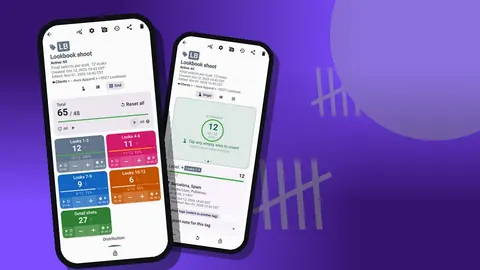
- Open the zone's counters and switch the counting screen to grid view, so a whole shelf is on one screen.
- Count each tag and adjust its value. Use a larger step for items counted in batches, such as sandbags in pairs.
- Retake photos where condition has changed.
- Add a note for anything that needs repair or replacement.
- Lock each counter when done, so later taps cannot change it.
If a full walk is too much for one day, audit half the zones each fortnight. A smaller audit that happens beats a full audit that is postponed.
Reading the audit
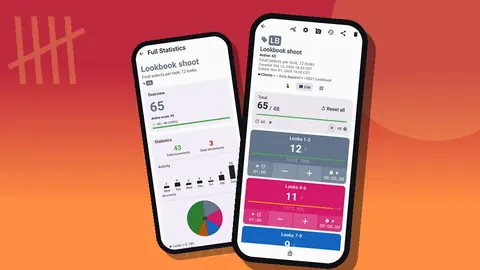
When the walk is finished, open the dashboard for the counters you audited. It shows totals against targets, increments and decrements, a seven-day activity chart and a pie chart by tag, along with tag photos and notes.
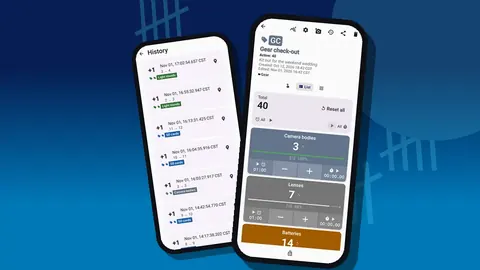
Two things are worth checking. Per-tag progress against targets shows which consumables are below your minimum. The activity chart shows which zones changed most since last time, which often points to the shelves people use without putting things back. History, with its exact timestamps and before and after values, fills in the details when a number is surprising.
How can several people share one studio inventory?
Counter App runs on each device independently, keeps its data on the phone and does not sync live. Two patterns work for teams:
- One studio phone that lives at the front desk or on a charging shelf and does all the logging. Simple and reliable.
- The owner's phone as master. Assistants receive a ZIP backup of the relevant categories and import it on their own phones. The import preview shows the contents and lets them replace, copy or skip duplicates. Changes come back the same way, which needs a clear agreement about who updates what.
For most small studios, the single shared phone is easier. The second pattern suits studios with separate people responsible for lighting and props.
A phone everyone can read
A shared studio phone is used by people with different eyesight, languages and habits. Counter App supports 37 languages with an in-app picker, which matters for mixed-language crews. Pick one of six theme skins and light, dark or system mode to suit the room; a dark mode is easier on the eyes in a blacked-out bay. Three size presets, font scaling from 0.7 to 1.5 and ten fonts make the screen readable from arm's length, and five date formats let log entries read naturally for your team.
Small adjustments like these make it more likely that people use the log instead of shouting across the studio.
Reports for budgeting
When planning purchases or reviewing equipment with your accountant, export. Excel or CSV suits numbers and replacement planning; an HTML report with embedded photos gives a visual record of condition. In the export options, choose Summary, Events, Notes and Locations as needed. A monthly export after the audit, saved in one folder, becomes a simple history of how the studio's kit has changed.
Related guides
If you rent equipment out, the rental check-out and return guide adds condition photos and dispute records. For individual photographers, the gear inventory article is a lighter version of this setup.
Closing thought
A studio inventory fails when it becomes a chore that falls behind. Matching the structure to the rooms, making each booking someone's responsibility and keeping audits small is what keeps it alive. Counter App supports that on Android 12 and later, works offline for all counting features, and is free to download with no ads; try it free for 3 days, then choose a yearly or monthly plan or a one-time lifetime purchase. Get the app at counterapp.online.
Frequently asked questions
Can studio equipment be organized by room and shelf?
Yes. Create a category per zone, a sub-category per type and, where needed, a third level per shelf, each with its own color.
How can several studio assistants share one equipment inventory?
The simplest pattern is one studio phone at the front desk. Otherwise the owner shares a ZIP backup that assistants import, with a clear agreement on who updates what.
How do I know when to reorder seamless paper or gaffer tape?
Set the consumable's tag target at the reorder level and count down as rolls are used. An optional sound or vibration fires when the level is reached.
How can a studio see what changed since last month's equipment audit?
The dashboard's activity chart and per-tag progress show where counts moved, and history lists each change with its time and before and after values.
Can studio equipment data feed purchasing decisions?
Export after each audit to Excel or CSV for the numbers, or to an HTML report with embedded photos for condition. Kept in one folder, the exports become a history of the kit.
Should every clamp in a photo studio get its own label?
Usually not. Label the drawer, case or crate with a QR sticker and let one tag count what is inside.