Counter App

Shot Counter App for Photographers: Track Every Setup
Key takeaways
A shot counter app for photographers turns the shot list into countable targets. In Counter App — Tally & Clicker, each setup becomes a tag with its own step and target, the volume keys log frames while the camera stays in your hands, and the timed history and dashboard show where a session's frames actually went.
- A photo shoot shot counter works best when one tap has a single agreed meaning per counter: frames, keepers or completed looks.
- Counter App — Tally & Clicker gives each setup on a shot list its own tag, step (1 to 100) and target, with an optional sound or vibration when the target is reached.
- Volume-key counting in Counter App is off by default and, once enabled, logs shots in the background and from the lock screen.
- The Counter App history timestamps every count, revealing gaps and bursts in a session that improve quotes for the next booking.
Photographers rarely run out of time because they work slowly. They run out because forty minutes went into the setup that felt good and ten minutes went into the three setups the client actually asked for. A shot counter is a small, slightly dull habit that prevents this: you see, in plain numbers, where the session is going while there is still time to change direction.
This guide covers what to count, how to prepare the list, how to build it in Counter App on an Android phone, and how to use the numbers afterwards for quoting and planning. It applies to portraits, brand sessions, lookbooks and small product jobs.
What should one tap mean on a photo shoot?
"Shots" is a vague unit. Before the session, decide what one tap represents for this job, and write it in the counter's description so you remember on the day.
- Frames per setup. Every press of the shutter on a given background or lighting arrangement. Useful when your problem is over-shooting the easy setups.
- Keepers per setup. You tap only after checking the back of the camera and seeing a frame you would deliver. Slower, but much closer to what the client receives.
- Looks or angles completed. One tap per finished outfit, product angle or pose. Best for lookbooks and e-commerce, where the list is fixed and the deliverable is "all of them".
Use one unit per counter. If a session genuinely needs two units, for example keepers for portraits and completed looks for a wardrobe section, make two counters. Mixing units inside one counter makes every total meaningless.
Write the shot list the client will judge
A counter is only as useful as the list behind it. Write the list the way the client will review the gallery. For a founder portrait: clean headshot, environmental portrait, walking shot, team group. For a family: everyone together, each parent with each child, siblings, candid play. For a fashion brand: twelve looks, each with a full-length, a three-quarter and a detail.
Then, next to each line, write a target if the brief implies one. "We need at least eight usable lifestyle frames" is a target. "A few detail shots" should become a number now, before the session, while you are calm and can ask the client what they mean.
A hypothetical brand session
Picture a two-hour booking for a small company. The list reads: headshot on grey (target 6 keepers), desk portrait (target 4), corridor walk (target 3), team group of nine (target 3 clean frames), product in hand (target 5). Five lines, five numbers. That is the entire planning step, and it takes less time than charging batteries.
Turning the shot list into tags
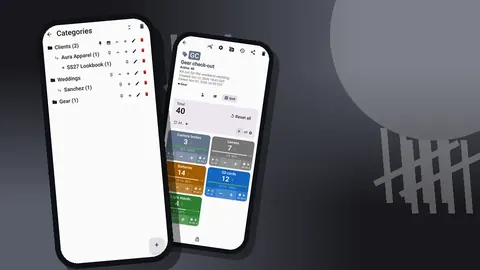
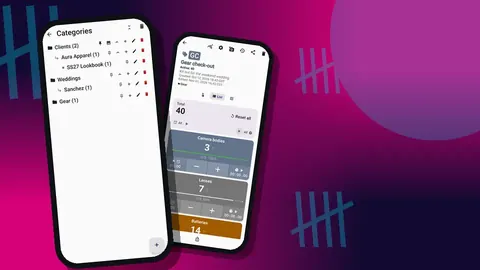
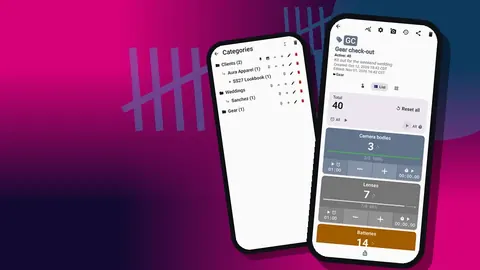
In Counter App, create a counter for the session, named with the client and date. Give it a color and a short code so it stands out in the counter list, put the brief or the on-set contact in the description and paste the moodboard link into the link field. If you shoot often, a category such as "Client sessions" with sub-categories by year or by client type keeps old sessions tidy. Categories nest three levels deep and can be pinned and reordered.
Inside the counter, add one tag per line of the shot list, in the order you plan to shoot. Each tag has its own color, value, step and target, plus notes, a link and room for up to six photos. A useful color habit is to give the setups that need a lighting change one color and the quick ones another, so you can see at a glance how many big changes are left.
How do steps and targets match the client brief?
The step is how much one tap adds. A step of 1 suits keeper counting. If you shoot in bursts of five and want to log a burst per tap, set the step to 5 on that tag; any step from 1 to 100 is allowed, per counter and per tag. Mixing steps between tags is fine, as long as the unit stays the same.
Set the target from your list. When a tag reaches it, the app can play a sound or vibrate, which tells you it is time to move on without lifting the phone. Auto-reset and auto-lock on target are also available. For most sessions, leave auto-lock off on creative setups, because you will want to keep going when the light is good, and turn it on for strictly fixed items such as a required logo shot, where extra taps would only confuse the record.
Targets can also count down. Some photographers prefer to start a tag at the required number and count towards zero, because "two left" is a more motivating message than "six of eight".
Grid, list or single view on set
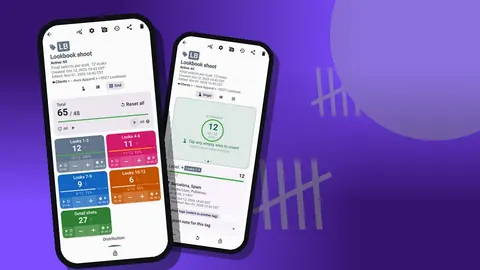
The counting screen shows the tags as a grid, a list or a single large counter.
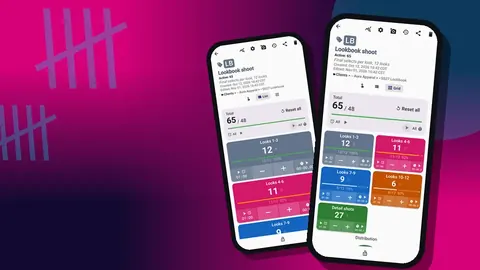
- Grid shows every setup as a colored tile with its value, target percentage and buttons. On set, it is the best overview: untouched tiles stand out immediately.
- List gives each tag a row with its value and target progress, plus the counter's total against its target. It suits long shot lists.
- Single fills the screen with one tag's big circular counter. It is ideal when you will spend twenty minutes on one setup and want a target you cannot miss with a thumb.
Tag display can be expanded, collapsed or collapsed except the most recent. The last option keeps the setup you are working on open while the rest fold away.
Volume keys and the lock-screen notification
When a camera is in your hands, tapping a phone is clumsy. Counter App can count with the volume keys, including in the background and on the lock screen, through a foreground service. It is off by default. Turn it on in settings, remap the keys if you prefer the opposite direction, and give each key its own sound or vibration so a press is identifiable by feel. Some devices may still flash the system volume bar on a shoot.
Rehearse this before the client arrives. Put the phone in the pocket you will use, press a few times, then check the history to confirm the counts went where you expected. Discovering on the day that your pocket presses the wrong key is avoidable.
There is also a lock-screen notification with minus step, plus step and Stop buttons. If an assistant is logging for you, the notification is often the fastest way: no unlocking, no hunting for the app.
During the session
Glance at the counter at natural breaks: a lighting change, a wardrobe change, the client stepping out for a call. Ask one question each time: which tag is furthest from its target, and is there still time for it? That glance often decides whether the last twenty minutes go to another round of the comfortable setup or to the one you have barely touched.
Some practical habits:
- Lock the counter when the phone goes down. A locked counter ignores taps, so a phone on a stool or in a bag does not add phantom frames.
- Correct with minus step. If you over-count, the minus button takes it back, and the correction is logged with a time like any other change.
- Use notes for decisions. "Client prefers left side", "backdrop crease, retouch", "skip corridor, too dark" are one-line notes on count events, and they save a conversation later.
Timed segments
Each tag has a timer and a stopwatch. Timer presets run from 30 seconds to 10 minutes (30s, 1m, 2m, 3m, 5m, 10m), with countdown beeps and a choice of alarm sounds and vibrations. A timer is handy for briefs such as "five minutes of candid walking" or "two minutes per look on the turntable".
The stopwatch is the honest twin. Start it when a setup begins and stop it when you move on. After a few sessions, you will know how long a team group of nine really takes you, as opposed to how long you hoped it would.
Reference photos and set notes
Up to six photos fit on one tag, enough to show the gear clearly. Use them for references that belong to that setup: a phone snapshot of the lighting arrangement, the client's sample image, the position of the light stands marked with tape. The photo editor lets you draw arrows with a brush, add text in four fonts with bold, italic, underline and strikethrough, choose from six colors and rotate the image. A lighting diagram scribbled on a phone photo is often clearer than one drawn from memory a week later.
The All Photos gallery collects photos from all tags with their labels and dates, and the All Notes screen does the same for notes, with sorting. Both are useful when you prepare a similar session for another client.
Reading the rhythm in history
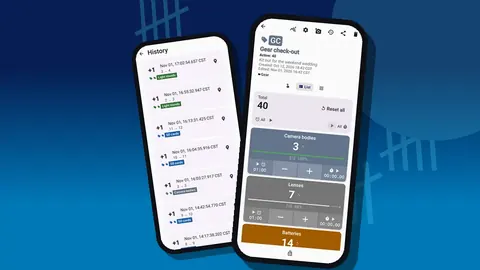
History logs every count with its time, the step, the value before and after and the tag. After the shoot, scroll through it. You will see the rhythm of the session: the long gap while a backdrop was changed, the burst when the group finally came together, the setup you abandoned after three taps.
That rhythm is planning data. If every team group starts with a ten-minute gap while people are gathered, schedule the group before the break, not after it.
The dashboard at wrap
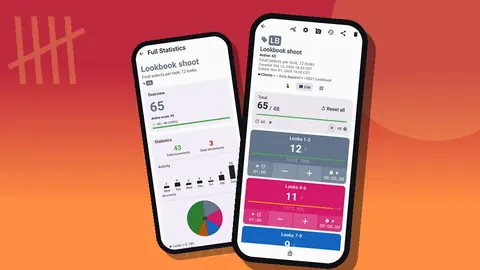
The dashboard shows the counter's total against target, increments and decrements, a seven-day activity chart and a pie chart by tag, plus the tag photos and notes. At wrap, the pie chart answers the uncomfortable question: where did the frames actually go? A large slice for the headshot and a thin one for the product-in-hand setup may explain why the client's favourite deliverable feels underpowered.
Before the client leaves, a quick look at per-tag progress also tells you whether anything on the list is still below target, while you can still grab five more minutes.
Comparing sessions over time
Export the counter to CSV or Excel when you want to compare sessions, or to an HTML report with embedded photos when you want a readable record. In the export options, choose the sections: Summary for totals, Events for the timeline, Notes for decisions, Locations if tags carry an address.
After a handful of exports in one spreadsheet, patterns appear. Perhaps groups always take three times the frames you planned. Perhaps detail shots always run short because they come last. That is the information that improves quotes, schedules and shot lists for the next booking.
How do you keep shot counting from slowing the shoot?
The point is not to turn a creative session into data entry. One counter, five or six tags, volume keys enabled, and a few seconds at each break. If the counting starts to compete with the photography, cut the list or switch from frames to completed setups.
If you also run event checklists for weddings and corporate work, see the event photography shot checklist. For high-volume e-commerce days, the product photography QR label workflow goes further.
Counter App runs on Android 12 and later and is free to download with no ads; try it free for 3 days, then choose a yearly or monthly plan or a one-time lifetime purchase. Get the app at counterapp.online.
Frequently asked questions
Can a photographer log frames with the phone in a pocket during a shoot?
Yes, after turning on volume-key counting in Counter App settings. The keys then count in the background and on the lock screen through a foreground service, although a few devices still flash the system volume bar.
How do I set a frame target for each setup on a shot list?
Give each setup's tag a target taken from the brief, such as six keepers for a headshot. Counter App can play a sound or vibrate the moment that tag gets there.
Can one tap record a whole burst of frames?
Set the tag's step to the burst length, for example 5. Steps from 1 to 100 can be set separately on every counter and tag.
Should I count frames or keepers during a portrait session?
Count keepers when the risk is under-delivering, and raw frames when the risk is over-shooting the easy setups. Use one unit per counter so its totals stay meaningful.
Can shoot data be compared across several photo sessions?
Export each session counter to CSV or Excel and line the files up in one spreadsheet. An HTML report with embedded photos suits a readable record of a single shoot.
Does a shot counter need mobile data on a location shoot?
No. Shot counting, targets, notes and photos all work with no connection on the phone.