Counter App

Count Water Intake and Daily Movement
Key takeaways
A water intake counter on Android can be as simple as one tap per glass. In Counter App — Tally & Clicker, a Water glasses tag with a daily target sits beside a manual movement tag such as walks or thousands of steps. Volume keys log drinks without looking, and weekly history reviews show how intake is spread.
- Counter App — Tally & Clicker is a manual tap counter for water intake and movement; it does not read sensors or count steps automatically.
- A water intake tag works best with one tap per glass or bottle refill, using the same container every day.
- Volume-button counting lets a glass of water be logged from a pocket, even with the screen locked.
- Water and exercise targets should come from a health professional or personal experience, not from an app.
Water and movement are the two habits people most often say they "should do more of", and the two they least often track well. Dedicated fitness gadgets measure some movement automatically, but water is almost always a guess, and short walks or stretch breaks rarely get recorded at all. A simple tap counter fills that gap. This guide sets up both habits in Counter App, explains the choices and shows how to review them.
One honest note first: Counter App does not read sensors and does not count steps on its own. Everything here is logged by you, with a tap. That is a limitation, but it is also why the method works for things sensors cannot see, like a glass of water.
What should one tap mean for water and steps?
Before creating anything, define your units. The rest of the setup follows from this.
- Water: one tap per glass is the simplest. If you drink from a large bottle, one tap per bottle refill or per half bottle works too. Choose a container you use every day and stick with it.
- Movement: pick one or two of the following. One tap per walk. One tap per thousand steps, read off a pedometer or watch at the end of the day. One tap per movement break away from the desk. One tap per flight of stairs.
Mixing units inside a single tag ruins the numbers. If a walk sometimes means five minutes and sometimes an hour, track walks in sessions and time them with the stopwatch instead.
The amounts themselves are personal. Health guidance on water and exercise varies with body, climate and activity, so take targets from a professional or your own experience, not from an app.
Setting up a hydration tag
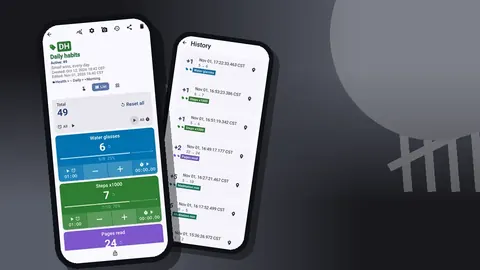
Create a counter called "Daily habits", or use an existing one, and add a tag named "Water glasses". Give it a blue or teal color so it is easy to find. Set the step to 1, so each tap is one glass. If your bottle holds the equivalent of two glasses and you prefer to log refills, set the step to 2 instead; the step can be anything from 1 to 100.
The tag's notes field is a good place to write down your unit: "one glass = the blue cup". It sounds trivial, but a month later you will be glad the definition is written down.
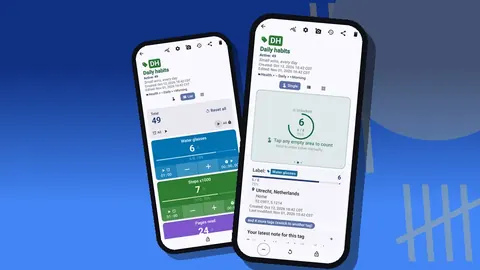
In the counting screen, Single view shows one tag large, with a circular counter and target progress. For a counter where water is the main habit, Single view makes the tap target huge and the progress obvious.
A target and what happens at the line
Give the water tag a target, for example eight glasses, counting up. When the count reaches it, the app can play a sound or vibrate. A short vibration is a satisfying signal that the day's water is done, without a notification nagging you.
There are two other options at the target line. Auto-reset resets the count when the target is reached, which suits repeating batches rather than a daily total. Auto-lock locks the counter, which suits limits rather than goals. For water, most people leave both off and reset the counter themselves each morning. History keeps every event regardless of resets, so nothing is lost.
If you want a limit alongside the goal, say on coffee, put it in its own tag with a target that counts down. Seeing water go up while coffee counts down on the same screen is a neat visual balance.
How can you log a glass of water without looking?
The weakest moment for water tracking is the gap between drinking and logging. You finish a glass in a meeting, mean to log it later, and forget. Volume-button counting closes that gap. Enable it in settings, map one key to +step and the other to −step, and pick a sound and vibration for each key, or turn them off for quiet logging. It is off by default.
Once enabled, it works in the background and on the lock screen via a foreground service, so you can press a key with the phone in your pocket. The lock-screen notification also offers −step, +step and Stop buttons. Certain devices may still pop up the system volume bar on a key press; the count is recorded.
Keep the volume keys for water, since it is the most frequent tap of the day, and use the on-screen buttons for movement.
A movement tag
Add a second tag, "Steps x1000" or "Walks", in a green or orange color. Choose its step to match your unit from earlier. If you log thousands of steps at the end of the day, a step of 1 per thousand keeps taps few. If you log walks, use 1 per walk.
Set a modest target. For walks, one a day is a good start. For thousands of steps, take your typical day as the baseline and aim slightly above it. Raise the target only once you hit the current one on most days.
Running both together
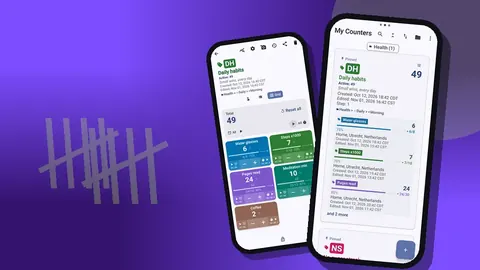
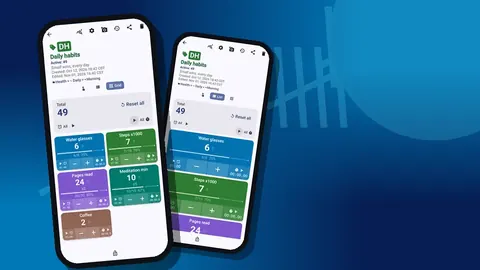
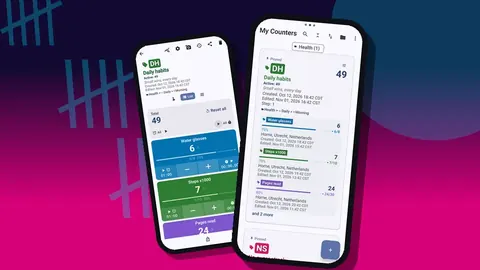
With two tags in one counter, List view becomes the most useful layout: each tag is a row with its value, progress toward target and − and + buttons. At a glance you see that water is at five of eight and walks at zero of one, which is exactly the nudge needed at four in the afternoon.
Grid view is an alternative if you prefer large colored tiles. The tag display can be expanded, collapsed, or collapsed except for the most recent tag, which keeps the one you last logged open.
Reset the counter each morning, or reset individual tags. A quick morning reset becomes part of the routine itself.
Timing walks and movement breaks
The movement tag has a stopwatch and timer of its own. For walks, start the stopwatch as you leave and stop it when you return. Over weeks, the durations reveal whether walks are holding steady or quietly getting shorter.
For desk breaks, use the timer. Presets of 30s, 1m, 2m, 3m, 5m and 10m cover most breaks, and a manual input handles longer ones. Countdown beeps signal the end, with seven alarm sounds and eight alarm vibrations to choose from. A two-minute timer for a stretch is short enough that you will actually take it.
Noticing how you feel
Counts become far more useful with a little context. When something stands out, attach a short note to the event: "headache by 3 p.m.", "slept badly", "hot day, extra glass", "walk with a friend". Keep notes short and occasional.
The All Notes screen collects every note with its tag and time, sortable. Reading them weekly often reveals simple connections, such as afternoons with fewer glasses lining up with notes about low energy. These are personal observations, not medical findings, but they help you decide what to try next.
What does a weekly water and walking review show?
Once a week, open the history. Every event is listed with its exact time, the step, the value before and after, the tag and icons for notes. For water, the question is distribution: are glasses spread through the day, or is most water arriving in the evening? For movement, the question is regularity: do walks happen on workdays, weekends, or both?
Make one change per week based on what you see. Put a glass on the desk at 10:00. Schedule a walk after lunch on Wednesdays. Small, specific changes beat general resolutions.
A monthly look at trends
The dashboard summarises the counter: total and target, increments versus decrements, per-tag progress, a seven-day activity bar chart and a pie chart by tag. A run of similar bars means the habits have become routine. Gaps show which days of the week need a different plan.
For longer comparisons, export once a month. Choose the Summary, Events and Notes sections and save as CSV or Excel, or create an HTML report. In a spreadsheet you can average glasses per weekday or compare months. Your counts are stored on the phone with no Counter App cloud, so these exports double as your archive.
Small counts, big picture
The power of this method is not precision. A glass is not an exact volume and a tap per thousand steps is an estimate. The power is consistency: the same unit, logged the same way, every day. After a month you have a picture of your habits that memory could never give you, built from nothing more than a few taps a day.
Making the counter part of the place
Habits attach to places. A glass on the desk, a bottle on the kitchen counter, shoes by the door: each is a cue. Some people take this further and stick a small printed QR code on the water bottle or the fridge, then save that code to the water tag, since tags support barcodes and QR codes that can be scanned with the camera or typed. Whether you find scanning faster than tapping is personal, so try it for a week before relying on it.
For water and walks, Counter App — Tally & Clicker by GiveMeMood runs on Android 12+ and is free to download with no ads; try it free for 3 days, then choose a yearly or monthly plan or a one-time lifetime purchase. Get the app at counterapp.online.
Frequently asked questions
Does Counter App count my steps automatically?
No. It is a manual tap counter. You log movement yourself, for example one tap per thousand steps read from another source, or one tap per walk.
Can a glass of water be logged with the volume buttons?
Yes, once volume-key counting is switched on in settings. Each press logs a glass even from the lock screen, and keys can be remapped with their own sound and vibration.
How does a water counter start each day at zero?
Reset the counter or a single tag each morning. History keeps every past event. You can also enable auto-reset, which resets the count when the target is reached.
Can walks and stretch breaks be timed alongside water intake?
Yes. The movement tag has its own stopwatch for walks and a timer with presets from 30s to 10m, or a typed duration, for desk breaks.
Does Counter App give advice on how much water to drink?
No. The app counts what you log. For personal targets on water or exercise, follow advice from a qualified health professional.
Can a coffee limit be tracked next to water intake?
Yes. Put coffee on its own tag with a target that counts down, so water counts up toward its goal while coffee counts down toward its limit on the same screen.