Counter App

Track Your Morning Routine on Android
Key takeaways
A morning routine tracker on Android should show which step breaks the chain. In Counter App — Tally & Clicker, create one Morning routine counter with a tag per step, each at step 1 and target 1, tap only when a step is finished, time steps with per-tag timers, and review the timestamped history weekly.
- Morning routines usually fail for three reasons: too many steps, no clear finish and no feedback.
- A morning routine counter in Counter App — Tally & Clicker uses one tag per step, each with step 1 and target 1, so every tag reads as done or skipped.
- Per-tag timers with presets from 30 seconds to 10 minutes give meditation and stretching a defined end.
- The time between the first and last tap in the history shows how long a morning routine really takes.
A morning routine is a chain. When one link breaks, the rest tends to go with it: you skip the stretch, so you check your phone, so breakfast is rushed, so the walk never happens. Tracking a routine is less about counting how much you did and more about seeing which link breaks and why. This guide sets up a routine tracker on Android that you can operate half awake.
Why do morning routines fall apart?
Three failure modes cover most broken routines.
Too many steps. A routine copied from someone else's video often has nine parts and takes ninety minutes. It survives the first enthusiastic week and dies on the first late night.
No clear finish. "Meditate for a while" has no end, so on busy mornings it becomes zero. Steps without a defined end are the first to be skipped.
No feedback. If a routine leaves no trace, a skipped step and a completed one feel the same by lunchtime. Without a record you cannot tell whether the routine is mostly working or quietly falling apart.
A counter addresses all three: it forces you to name the steps, a timer gives timed steps an end, and the history shows what really happened.
Designing the routine counter
Make one counter called "Morning routine" and add a tag for each step, in the order you do them. A realistic starting list:
- Water on waking
- Stretch
- Meditation
- Journal line
- Outdoor walk
Five steps is plenty. If you are not sure, start with three and add the rest after two good weeks. Give each tag a distinct color so the grid reads at a glance, and keep the labels short enough to read without glasses.
Set every step to 1 and give each tag a target of 1 as well. That makes each tag a yes-or-no completion: zero means skipped, one means done. The counter as a whole then has a natural daily total equal to the number of steps.
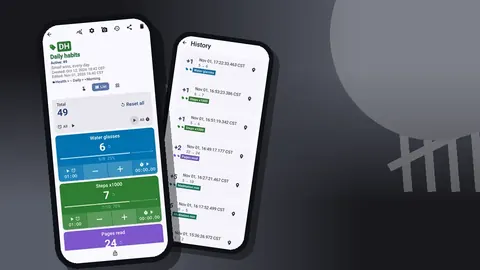
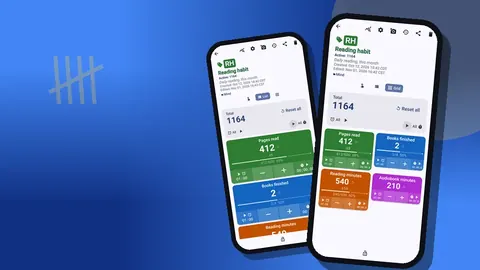
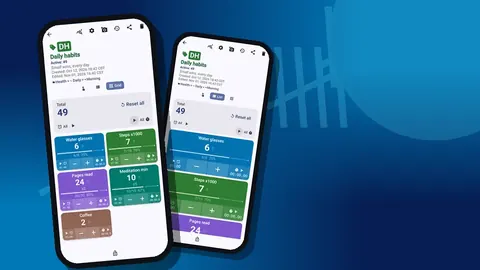
In the counting screen, List view shows the steps as rows in order, which suits a sequence. Grid view shows them as colored tiles, which some people find easier with one thumb. The tag display can be expanded, collapsed, or collapsed except for the most recent one, which conveniently keeps the step you just finished visible.
Resetting matters for a daily routine. Reset the counter each morning before you start, or reset single tags when you redo a step. The history keeps every past count regardless, so the reset only clears today's working numbers.
Tap as completion
Use the tap as a ritual of finishing, not as a to-do list. Tap the tag only once the step is truly done: after the glass is empty, after the last stretch, when the meditation timer rings. That small physical act of completion is part of what makes the routine stick.
A counter differs from a checklist in one useful way. A checklist records that something was ticked; the counter's history records exactly when. Over a week, that turns into a timeline of your mornings, which is far more informative than a column of ticks.
If you tap the wrong step, press −step on it. The correction appears in the history as a decrement, so you can tell real skips apart from slips.
Timed steps without watching the clock
Meditation, stretching and breathing exercises need an end, or they shrink to nothing. Every routine tag carries its own timer and stopwatch. Open the timer for the Meditation tag, choose a preset such as 5m, and close your eyes. Presets are 30s, 1m, 2m, 3m, 5m and 10m, with manual input for anything else.
Countdown beeps warn you that time is nearly up, and you can pick one of seven alarm sounds and eight alarm vibrations. A soft vibration is often kinder at 6 a.m. than a ringtone, especially if someone else is still asleep.
The stopwatch suits steps that should be done rather than timed, like a walk. Start it as you leave and stop it when you return; the duration tells you whether the walk is creeping shorter over the weeks. You can reset one timer or all of them at once when the morning is over.
How can you log a routine step half awake?
Before coffee, small on-screen buttons are an obstacle. Volume-button counting solves this. Enable it in settings, map the keys to the actions you want, and set sound and vibration per key. It is off by default. Once on, it runs through a foreground service, so it works in the background and on the lock screen.
The lock-screen notification adds −step, +step and Stop buttons, which is often all you need for a routine where each step is one tap. On some phones a key press may still flash the system volume bar, yet the count still registers.
Keep one habit per key. Mapping the volume keys to the current counter and finishing steps in order works well; trying to remember which key belongs to which step does not.
A dark, calm screen at dawn
The first screen you see in the morning sets a tone. Counter App offers light, dark or system mode, six theme skins such as Ocean Deep or Monochrome, three size presets and font scaling from 0.7 to 1.5. A dark skin with a larger font is easier on the eyes at dawn and makes the step labels readable at arm's length.
Choose a count sound and vibration style that feel calm. There are thirteen sounds and eight vibration styles, and something gentle makes the act of finishing a step pleasant rather than jarring.
What should a weekly routine check-in look for?
Once a week, open the history. Every count is listed with its time, step, before and after values, tag and any note icon. Read it like a story of your mornings and look for the following:
- The breaking link. Is the same step skipped most often? If the journal line keeps disappearing, it may belong in the evening.
- Drift. If the first tap moves from 6:45 to 7:20 over the week, sleep is the real issue, not the routine.
- Duration. The gap between the first and last tap is how long your routine actually takes. Compare it to how long you think it takes.
Then change exactly one thing. Swap the order of two steps, shorten a timer or drop a step. Small adjustments keep the routine yours.
Notes for unusual mornings
Some mornings are different: travel, illness, a child awake at five. Instead of letting those days look like failure, attach a note to a count event or the tag: "hotel, no space to stretch", "kids up early". The All Notes screen collects these with tags and times, and you can sort them.
Notes make the review honest. A skipped walk with "storm" next to it is not a habit problem; three skipped walks with no explanation might be.
Seeing what you have built
The dashboard gathers the routine counter in one view: total and target, increments versus decrements, a seven-day activity bar chart and a pie chart by tag. For a routine, the bar chart is the most telling. A row of similar bars means your mornings have stabilised. One tall bar and several short ones means the routine happens only on easy days.
The pie chart has a quieter use. Since every step has a target of one per day, a balanced routine produces roughly equal slices. A shrinking slice points straight at the step you keep skipping.
Monthly export
At the end of the month, export the counter. Choose the Summary, Events and Notes sections and save as CSV or Excel, or produce an HTML report. In a spreadsheet, the event timestamps let you calculate average start time or the share of complete mornings, if you enjoy that kind of detail. Routine data is stored on the phone, with no account and no Counter App cloud, so the export is also a good archive.
Start this week
Tonight, write three steps on paper. Tomorrow, create the counter, add those three tags with step 1 and target 1, and turn on volume-key counting if you like logging blind. Use a timer for any step that needs an end. Next Sunday, look at the history and change one thing. That is the whole method.
Weekends, travel and the minimum version
A routine designed for a quiet weekday at home will break on Saturday or in a hotel. Plan for it instead of treating those days as exceptions. Define a minimum version of the routine: perhaps water, one minute of stretching and a single journal line. Add a tag called "Minimum version" and tap it on mornings when only the short form is possible.
This does two things. It keeps the chain unbroken in spirit, which protects motivation. And it gives you honest data: in the history, a week with three full mornings and four minimum mornings looks very different from a week with three full mornings and four blanks.
If you travel with a different phone setup or a new device, remember that data stays on the phone. A backup ZIP before a long trip is a sensible precaution.
Each morning above runs on Counter App — Tally & Clicker by GiveMeMood, which needs Android 12+ and is free to download with no ads; try it free for 3 days, then choose a yearly or monthly plan or a one-time lifetime purchase. Get the app at counterapp.online.
Frequently asked questions
Can a morning routine tracker time meditation or stretching?
Yes. Every routine step tag has its own timer with presets from 30s to 10m, countdown beeps, 7 alarm sounds and 8 alarm vibrations.
Can a morning routine step be ticked off without unlocking the phone?
Yes. Once volume-button counting is turned on, the side keys log a step from the lock screen, and the lock-screen notification adds -step, +step and Stop.
Does a morning routine tracker need Wi-Fi?
No. Routine steps are logged offline; only optional notifications, update checks and map tiles need a connection.
Can you see which mornings a routine step was skipped?
Yes. History logs every count with its exact time and tag, and the dashboard shows a 7-day activity bar chart.
Is there a dark theme for checking a routine at dawn?
Yes. Choose light, dark or system mode and one of 6 theme skins, plus size presets and font scaling.
How many steps should a morning routine have?
Three to five steps is a realistic start. Long routines copied from videos tend to survive one enthusiastic week and break on the first late night.
What is a minimum version of a morning routine?
A minimum version is a short form for travel or busy days, such as water, one minute of stretching and one journal line, logged on its own tag so the history shows it.