Counter App

Track Multiple Personal Goals on Android
Key takeaways
To track personal goals with a counter app, turn each outcome into behaviors you can count. In Counter App — Tally & Clicker, file goals in categories by life area, give each goal a counter with the outcome in its description, add a tag per behavior with sensible steps and targets, and review each dashboard monthly.
- Personal goals are easier to act on when each outcome goal is broken into small, countable behavior goals.
- In Counter App — Tally & Clicker, each personal goal gets its own counter, with one tag per behavior and the outcome written in the description.
- Counter App categories nest up to three levels, such as Health, Fitness and Running, for organising several goals by life area.
- Targets you hit about three times out of four keep a personal goal challenging without teaching you to ignore it.
Most personal goals are outcomes: run a 10K, save for a trip, speak conversational Spanish. Outcomes are good for direction and bad for daily action, because you cannot do "speak Spanish" on a Tuesday. What you can do is a lesson, ten flashcards, a short conversation. This guide shows how to track several personal goals at once by counting the behaviors under them, and how to organise everything so the system stays clear when you have five or six goals running.
What is the difference between outcome and behavior goals?
Write each goal as a sentence, then ask what you would have to do repeatedly for it to happen. That second answer is the behavior goal, and it is the one you count.
| Outcome | Behaviors to count |
|---|---|
| Run a 10K in spring | runs, strength sessions, kilometres logged |
| Learn conversational Spanish | lessons, flashcard sessions, conversations |
| Save for a trip | no-spend days, packed lunches |
| Read more widely | pages read, books from a new genre |
Behaviors must be observable and small. "Be more disciplined" fails both tests. "Lights off by 23:00" passes. If you cannot imagine tapping a button for it, rewrite it.
Keep the outcome visible, though. It is the reason the behaviors matter. Put it in the counter's description, so a glance reminds you what the taps add up to.
Building a goal hierarchy
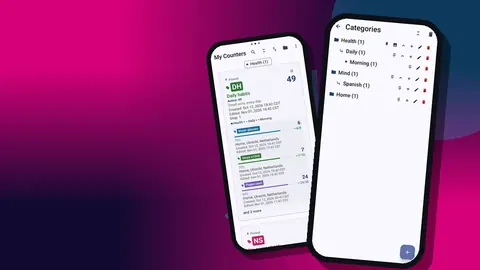
With several goals, organisation decides whether you keep using the system. Counter App categories nest up to three levels, which maps naturally onto life areas:
- Health › Fitness › Running
- Mind › Languages
- Home › Money
Each category can have its own color, so a glance at the list tells you which area a counter belongs to. Pin the area you are focusing on this season and it stays at the top. Categories can be reordered as priorities shift, and a deleted category goes to its own trash rather than disappearing.
Do not build the full tree on day one. Start with top-level areas and add a sub-level only when one area holds more than three or four counters. Deep hierarchies with one counter each are harder to navigate than a flat list.
One counter per goal
Give each goal its own counter. A counter carries a name, color, initials or short code, a description, notes and a link. The link field is a quiet but useful extra: point it at your training plan, a course page or a savings spreadsheet, so the resource is one tap from the counter.
The code badge helps when names get long. "10K" or "ES" in a colored badge reads faster than "Spring 10K preparation" when you scan the list.
There is no limit on counters, so do not merge unrelated goals to save space. Merging makes the dashboards meaningless, because a pie chart mixing flashcards and packed lunches tells you nothing.
Behavior tags inside each counter
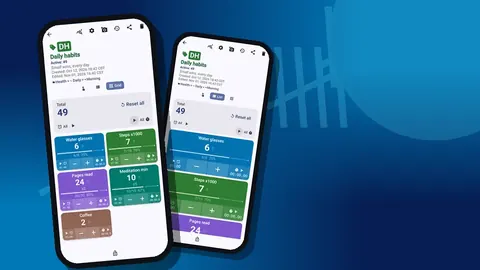
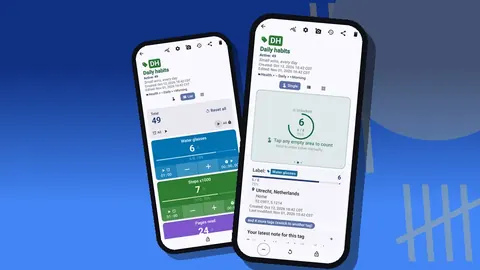
Inside a goal counter, add one tag per behavior. Each tag has its own colored label, value, step, target, stopwatch and timer, and optionally notes, a link, a barcode and a location.
Set steps to match the natural unit:
- Runs: step 1, one tap per run.
- Kilometres: step 1 or 5, depending on how you record distance after a run.
- Flashcards: step 10, tapped after each set of ten.
- No-spend days: step 1, tapped in the evening if the day qualified.
The step can be any value from 1 to 100, so you rarely need more than a single tap per session.
Timers belong on behaviors that are about time. A language lesson tag with a 10m timer gives a short session a clear end, while the stopwatch suits open-ended practice.
Targets: up, down and what happens at the line
Targets turn behaviors into commitments. Set a target per tag, such as 12 runs this month or 300 flashcards, or one target for the whole counter. Targets can count up to a goal, or count down from a number, which is the natural shape for a limit like "no more than four takeaway meals".
When a target is reached, the app can sound or vibrate. It can also auto-reset, which suits repeating cycles where you want to start the next batch immediately, or auto-lock the counter, which suits limits where further taps should take deliberate effort. You can also lock any counter manually against accidental taps, and reset a single tag or the whole counter when a new period starts.
Choose targets you can hit about three times out of four. That ratio keeps the goal challenging without teaching you to ignore it.
Keeping many goals readable
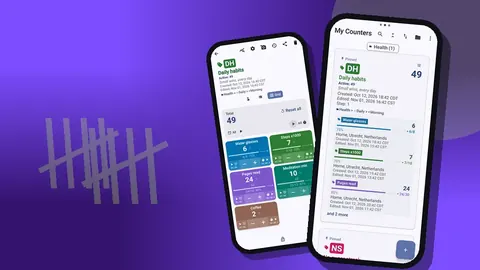
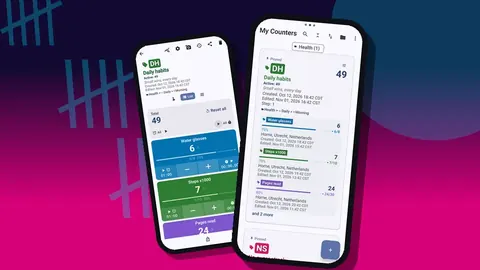
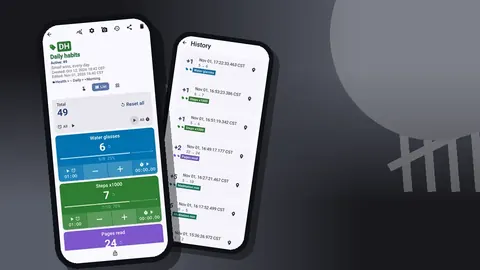
Five goals with three behaviors each is fifteen tags. The counter list keeps that manageable. Switch between List and Grid view, search by name, filter by date range and pick one of six sort orders. Pinned counters stay at the top regardless of sort, so the season's focus never sinks.
A useful habit: try each of the six sort orders once and note which one answers your usual question, whether that is "what have I neglected?" or "what is nearly done?". Then switch to it during reviews instead of scrolling.
How do you pause a goal without losing its data?
Life changes, and some goals need to wait. You have two choices that keep the data:
- Lock the counter. It stays in the list, its history intact, but taps are blocked. Good for a goal paused for a few weeks.
- Delete it to trash. It leaves the list and can be restored later with its data. Good for a goal you are shelving for months.
Before a big change, make a backup ZIP. Choose which goal counters and categories go into the ZIP, and compress photos to keep the file small. There is no account and no Counter App cloud, so a backup is the dependable way to keep a paused goal safe for the long term.
What questions should a monthly goal review answer?
Once a month, go through each goal counter's dashboard. It shows total and target, increments versus decrements, per-tag progress, a seven-day activity bar chart, a pie chart by tag and the photos and notes attached to the counter.
For each goal, answer three questions:
- Are the behaviors happening? Per-tag progress against target answers this directly.
- Are they steady? The activity chart shows whether effort is spread out or crammed.
- Is the outcome getting closer? This is your judgment, not the app's. If the behaviors are on track but the outcome is not, the behaviors may be the wrong ones.
Then decide: keep, adjust or pause. Adjusting usually means changing a target or a step, not adding more behaviors.
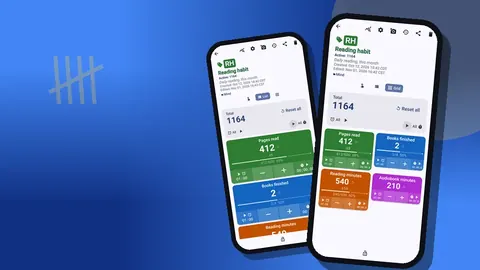
Think about the step size as well. A reading goal counted in pages can use a step of 10, so one tap logs a chapter-sized chunk, while a goal like glasses of water keeps a step of 1. Because the step is set per counter and per tag, each behavior inside a goal can count in the unit that fits it.
Export as accountability
Some people keep goals better when someone else can see them. The share screen can produce an HTML page of a counter, and the export options let you choose Summary, Events, Notes and Locations for a CSV or Excel file. An HTML report with embedded photos makes a tidy monthly update to send a training partner, a mentor or a friend working on the same goal.
Even without an audience, a folder of monthly exports becomes a record of what you actually did across a year, which is often more impressive than you remember.
Notes as context
Numbers lose their meaning without context. Attach short notes to events: "knee sore, swapped run for bike", "conversation with neighbour, 20 minutes in Spanish". Notes appear in the history with an icon, are collected in the All Notes screen with sorting, and show on the dashboard.
At review time, notes explain dips. A month with fewer runs and three injury notes calls for patience, not a new plan.
Your first week
- Write down your goals as outcomes, then list two or three behaviors for each.
- Create top-level categories for your life areas.
- Create one counter per goal, with the outcome in the description.
- Add behavior tags with sensible steps and modest targets.
- Pin the goal that matters most this season.
- Tap after every behavior, and add a note whenever context matters.
- At the end of the week, check the list, adjust one target and continue.
When two goals compete for the same hour
Several goals running at once eventually collide. Training for a race and studying a language both want the same evening slot, and something gives. The counters make the collision visible: one tag climbs while the other stalls, week after week.
When that happens, decide deliberately rather than letting the quieter goal fade. Choose a primary goal for the season and pin its counter. Lower the targets on the secondary goal to a maintenance level, for example two short lessons a week instead of five, and write the new plan in its description. A maintained goal is still alive; a forgotten one usually is not.
Revisit the choice at each monthly review. Seasons end, races are run, and the secondary goal can take the pinned spot when its turn comes.
Counter App — Tally & Clicker is made by GiveMeMood for Android 12+ and is free to download with no ads; try it free for 3 days, then choose a yearly or monthly plan or a one-time lifetime purchase. Get the app at counterapp.online.
Frequently asked questions
How many levels can a personal goal hierarchy have in Counter App?
Goal categories nest three levels deep, for example Health, Fitness and Running. Each can be colored, pinned and reordered, and a removed category lands in the category trash.
Can a personal goal target count down for a limit?
Yes. A target can count up to a goal or down from a number, with optional sound or vibration alerts, auto-reset and auto-lock when it is reached.
Is there a limit on how many goal counters you can create?
There is no limit. Each counter has a name, color, code, description, notes and a link, and can hold several tags.
Can goal counters be filtered by date or sorted?
Yes. The counter list offers search, a date-range filter, 6 sort orders and pinned counters, in List or Grid view.
What happens if a goal counter is deleted by mistake?
The goal counter goes to the trash with its data and can be restored from there.
What should you do when two personal goals compete for the same time?
Pick a primary goal for the season and pin its counter, then lower the other goal's targets to a maintenance level and note the plan in its description.