Counter App

How to Track Daily Habits With Counter App
Key takeaways
To track daily habits with Counter App — Tally & Clicker, list your life areas on paper, create one counter per area and one tag per habit, and set each step so one tap equals one natural unit. Tap right after each habit, add targets, review the history every Sunday and export once a month.
- A daily habit tracker only works when logging a habit costs less effort than the habit itself.
- In Counter App — Tally & Clicker, a daily habit system uses one counter per life area and one tag per habit.
- Setting the step so one tap equals one natural unit, such as a glass of water or five pages, keeps habit logging under two seconds.
- A five-minute Sunday review of the history screen, followed by one adjustment for the week, keeps a habit system improving.
A daily habit tracker only works if logging costs less effort than the habit itself. Writing "drank water" in a notebook six times a day is a chore; tapping a button is not. This guide builds a complete system in Counter App, from planning on paper to a monthly export, and explains the reasoning behind each choice so you can adapt it instead of copying it blindly.
Where should a daily habit tracker start?
Open a notes page, not the app. List the parts of life where you want to change something in the next month. Most people land on two to four areas, such as Health, Mind and Home. Under each, write the concrete behaviors you could observe and count: a glass of water, a walk, ten pages, a ten-minute tidy.
Now cut. For every behavior, ask whether you would notice if you stopped tracking it. If the answer is no, it is probably a vague wish rather than a habit you are building. Aim for no more than three behaviors per area at the start. You can add more later, and the app makes that trivial, but every extra tag is one more thing to remember.
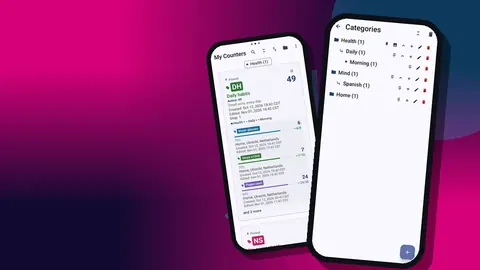
When the plan is clear, recreate the areas as categories. Categories can nest three levels deep, carry their own colors and be pinned so the important one sits at the top. A single level is usually enough; save deeper nesting for something like Health › Movement › Running if you genuinely track several kinds of exercise.
Build the structure
The structure has two layers, and getting them right saves you from rebuilding later.
One counter per area
Create a counter for each area. It needs a name; the color, the initials or short code, and the description are optional but worth a minute. Use the description to write one sentence about why this area matters. On a flat week, rereading your own reason is more persuasive than any reminder.
There is no limit on how many counters you create, so you do not need to cram unrelated things together. A "No-sugar streak" can live as its own counter beside "Daily habits" if you prefer to see it separately in the list.
One tag per habit
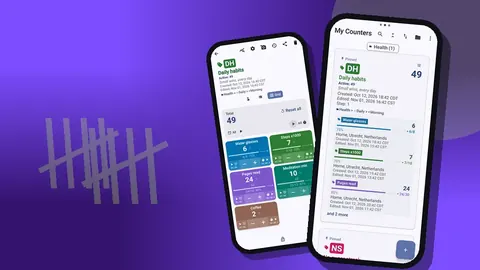
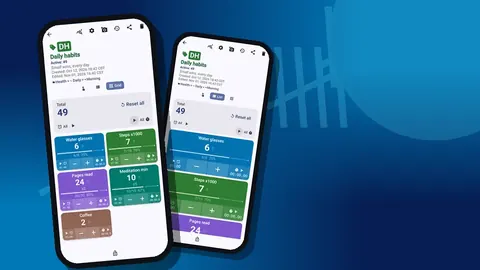
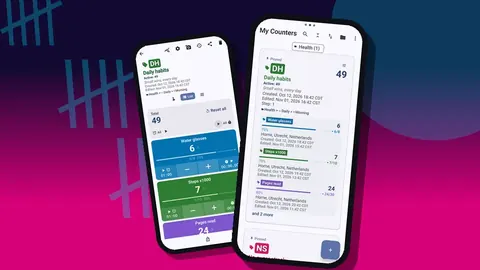
Inside each counter, add one tag per behavior. Tags are where the real tracking happens. Every tag has its own colored label, its own value, its own step from 1 to 100 and its own optional target. A Health counter might hold "Water glasses", "Steps x1000" and "Stretch sessions", each counting independently.
Pick the step so that one tap equals one natural unit. Water is one glass per tap. Reading might be five pages per tap if you read in chunks. "Steps x1000" is a manual log where one tap means roughly another thousand steps, read off whatever you use to measure them; the app does not count steps by itself.
Logging in under two seconds
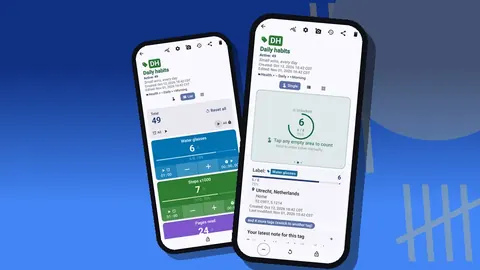
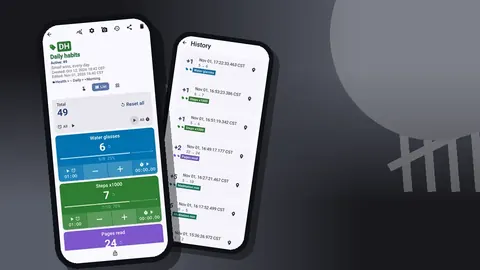
The counting screen shows the tags of a counter in three layouts. Single view gives one big tag at a time, which suits a counter with one main habit. List view shows every tag as a row with − and + buttons, its value and progress toward its target. Grid view turns tags into colored tiles. For a daily habits counter, List is usually the fastest to read at a glance.
Adopt one rule: tap immediately after the behavior, never before and never "later". Before turns the log into intention; later turns it into guesswork. If you missed a tap, add it as soon as you remember and attach a short note on the event, such as "logged late, was at work". The history will then tell the truth about both the habit and your logging.
Mistakes are cheap. The −step button undoes an accidental tap, and it is logged as a decrement so nothing silently disappears. If a whole tag needs a fresh start, you can reset just that tag or the entire counter.
The tag display setting matters once a counter grows. Expanded shows full details for every tag, collapsed shows compact rows, and "collapsed except most recent" keeps the habit you just logged open while folding the rest.
Counting from the lock screen
The biggest source of lost data is the gap between doing a habit and finding the right screen. Two features close that gap.
First, volume-button counting. In settings you can enable it, map each key to an action and choose sound and vibration per key. It is off by default. Once on, it runs through a foreground service, so it keeps working in the background and on the lock screen. A few devices may still display the system volume bar on a key press; that is a device behavior, not a missed count.
Second, the lock-screen notification offers −step, +step and Stop buttons. For a single repetitive habit, like glasses of water at a desk, this means the phone never needs to be unlocked.
A practical tip: use volume keys for the one habit you log most often, and the on-screen buttons for everything else. Mapping several habits to two physical keys gets confusing fast.
How do targets make a habit day feel finished?
A target turns an open-ended count into something you can complete. Set it per tag, for example eight glasses or twenty pages, or on the counter as a whole. Targets can count up toward a goal or count down from a number, which suits limits like "no more than three coffees".
When a target is reached, the app can alert you with a sound or vibration. It can also auto-reset the count or auto-lock the counter. Auto-lock is handy for limits: once the coffee allowance is used up, the counter locks against further taps, which is a small but real moment of friction. You can still unlock it deliberately.
Be careful with ambitious targets in week one. A target you hit four days out of seven builds confidence; one you hit once a week teaches you to ignore it. Raise the bar only after two weeks of steady completion.
You can also lock a counter manually at any time, which is useful when the phone lives in a pocket and taps happen by accident.
What should a weekly habit review look at?
Logging without review is just data collection. Once a week, spend five minutes with the history screen. Every count is listed with its exact time, the step applied, the value before and after, the tag it belonged to and icons for any note, photo or location.
Look for three things:
- Timing patterns. Do water taps cluster in the afternoon, leaving mornings dry? Does reading only happen on weekends?
- Corrections. Many decrements on one tag suggest the buttons are too close together or the step is wrong.
- Notes. Read the notes you attached to events. They are often where the real lesson is, such as "skipped walk, rain" three times in a row.
Write one adjustment for the coming week. Just one. Move the water bottle, change a step, drop a habit that is not earning its place.
Reading the dashboard
The dashboard condenses a counter into an overview: total against target, increments versus decrements, a 7-day activity bar chart, per-tag progress and a pie chart by tag. Photos and notes attached to the counter are collected there too.
The bar chart answers "was this week consistent?" better than any total. Five similar bars beat one tall spike and six empty days, even if the totals match. The pie chart answers a different question: which habit dominates your attention? If one tag takes most of the slice while the others are slivers, either those habits are not a priority or they need a simpler form.
When the counter list grows, the list itself helps. Search finds a counter by name, a date-range filter narrows what you see, six sort orders let you reorder by what matters, and pinned counters stay on top.
A monthly export
At the end of each month, export. The share screen offers an HTML report and data export; the export dialog lets you tick Summary, Events, Notes and Locations and save as CSV or Excel. The HTML report can embed photos, which makes it a pleasant monthly snapshot to keep.
A spreadsheet opens up analysis the app does not try to do: averages per weekday, month-over-month comparisons, or a chart of your own design. Keep the files in a folder by month and you build a personal record that does not depend on any service staying online.
Because habit data is stored on the phone, with no account and no Counter App cloud, the export and the backup ZIP are your safety net. Make a backup before switching phones; import shows a preview and lets you replace, copy or skip duplicates.
Keeping the system alive
- Start smaller than feels useful. Three tags you log daily teach more than ten you log sometimes.
- Prune monthly. Delete or archive habits that no longer matter. A pruned counter goes to the trash and can be brought back, so pruning is not risky.
- Make it pleasant. Pick one of the theme skins, a font you like and a count sound that feels satisfying. There are 13 sounds and 8 vibration styles, and small rewards matter.
- Keep one place. If you log habits in two apps and a notebook, you will trust none of them.
Counter App — Tally & Clicker by GiveMeMood runs on Android 12+ and is free to download with no ads; try it free for 3 days, then choose a yearly or monthly plan or a one-time lifetime purchase. Get the app at counterapp.online.
Frequently asked questions
Can one Counter App counter hold several daily habits?
Yes. A counter can hold several tags, and each tag keeps its own value, step, target, color, and optional timer and stopwatch.
Can a daily habit be logged without unlocking the phone?
Yes, after switching on volume-button counting, which then keeps working from the lock screen through a foreground service. The lock-screen notification also carries -step, +step and Stop buttons for habit logging.
Does the app need an internet connection to log habits?
No. Habit logging works offline; the app only goes online for optional notifications, update checks and map tiles.
Can daily habit data be exported to a spreadsheet?
Yes. Export to CSV, Excel (XLSX) or an HTML report, choosing the Summary, Events, Notes and Locations sections you want.
Is the daily habit tracker a subscription app?
Not necessarily. Counter App — Tally & Clicker is free to download with no ads; try it free for 3 days, then choose a yearly or monthly plan or a one-time lifetime purchase, and habit data is stored on the phone with no account.
How many habits should a beginner track at once?
Start with no more than three behaviors per life area. Three tags logged every day teach more than ten logged now and then, and more can be added later.
What should you do when you forget to log a habit?
Add the tap as soon as you remember and attach a short note such as 'logged late'. The history then stays honest about both the habit and the logging.