Counter App

A Counter App for Classroom Management
Key takeaways
A classroom management counter app lets teachers record participation, routines and positive points in a tap. In Counter App — Tally & Clicker, create one counter per class, add a tag per student or behavior, count from List or Grid view or the volume keys, and review the dashboard pie chart for patterns after two weeks.
- A classroom counter in Counter App — Tally & Clicker works best when it answers one question, such as who speaks in whole-class discussion.
- Teachers can set up one counter per class with either a tag per student for participation or four to six tags per behavior.
- Volume-button counting in Counter App — Tally & Clicker lets a teacher log a tally from the lock screen; the setting is off by default.
- A class reward jar in Counter App is one tag with a target, where the alert at the target is the cue for the agreed reward.
- The Counter App dashboard pie chart by tag shows whether participation or positive points are spread fairly across a class.
Most classroom management systems fail for a dull reason: recording takes longer than the behavior it records. If noting a good answer means finding a pen, flipping to the right page of a register and drawing a mark, it will happen for the first ten minutes of term and then quietly stop. A counter app on your phone removes most of that friction. This guide shows how to set one up for participation, routines and positive points so that it still gets used in week eight.
Start with one question, not ten
Before creating anything, write down the single question you want the data to answer. Some useful examples:
- Who speaks in whole-class discussion, and who never does?
- How many times per lesson do I have to repeat the instruction to settle?
- Is the class getting faster at the start-of-lesson routine?
- Are positive points spread fairly, or does a handful of confident students collect most of them?
Each question implies a different setup. Participation needs a tag per student. Settling needs a tag per prompt type. Routine speed needs a timer more than a tally. Trying to answer all four at once in the same lesson is how teachers end up with a screen full of buttons they never press. Pick one, run it for two weeks, then decide whether to add a second.
Setting up for a class
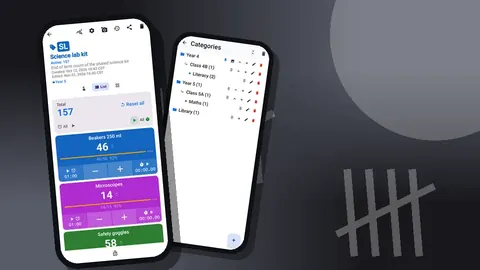
In Counter App a counter holds tags, and each tag keeps its own value. For classroom use that maps neatly: one counter per class, one tag per thing you count inside that class.
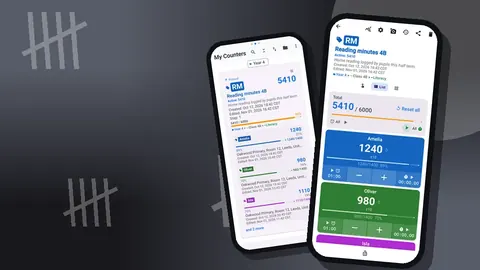
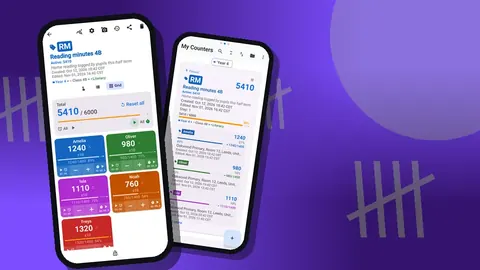
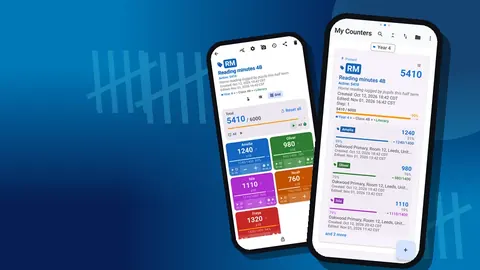
Categories keep the list tidy once you teach several groups. They nest up to three levels, so a secondary teacher might use "Year 9 > 9C > Science", while a primary teacher could use "Year 4 > 4B > Reading". Categories can be colored and pinned, and pinning the class you teach next puts it at the top of the counter list.
Give each counter a short code or initials. The code badge appears on the counter card, and a two-letter code like "4B" is quicker to spot than a long name when you open the app between lessons. The description field is a good place to note the question from the previous section, so that when you look back at the data in a month you remember why you were collecting it.
Choosing tags: students or behaviors
There are two sensible shapes for a class counter.
A tag per student works for participation and positive points. Thirty tags is a lot, but List view handles it, and search in the counter list helps you get to the right class quickly. Use first names only, or initials if you share your screen with the class.
A tag per behavior works when you care about the class as a group: "Hands up", "Called out", "Off task prompt", "Helped a peer". Four to six tags is the sweet spot. More than that and you will hesitate over which one applies.
Every tag can have its own color, step and target. A practical trick is to give a bigger step to rarer, more valuable events. If a hand raised is worth 1, a full-sentence answer with a reason might be worth 3. Steps range from 1 to 100, and the minus button always removes exactly the tag's step, so corrections stay clean.
Counting during the lesson
Open the counter before the lesson starts, not when the first event happens. That one habit removes most of the lag.
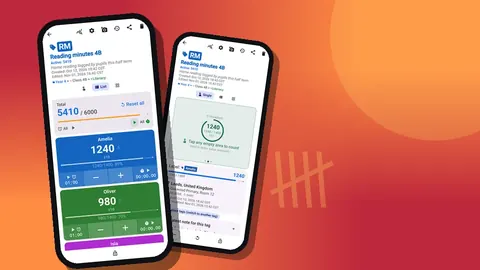
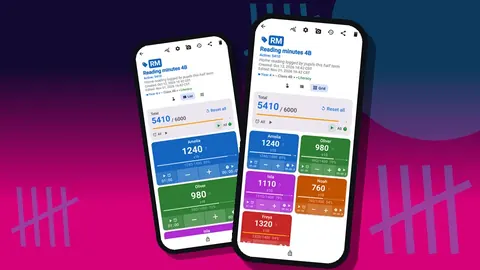
List view shows every tag as a row with a minus button, the value, a plus button and a progress bar toward its target. It suits a tag-per-student setup because names are readable at a glance. Grid view shows colored tiles and suits a tag-per-behavior setup, where you want four big targets for your thumb. Single view focuses on one tag with a large circular counter and is handy when you are tracking one student's goal.
Tag display can be expanded, collapsed, or collapsed except the most recently used tag. With thirty students, "collapsed except most recent" keeps the screen short while leaving the last student you tapped open, which is often the one you are about to tap again.
If you mis-tap, press minus on the same tag. The event log records both taps, so nothing is hidden, but the value is correct.
Can a teacher count without holding the phone?
Holding a phone while teaching is not always realistic. Counter App can count with the volume buttons, including in the background and on the lock screen through a foreground service. The keys can be remapped, and each key can have its own sound and vibration, which matters in a quiet room: a short vibration confirms the count without anyone else hearing it.
This setting is off by default. Turn it on in settings and try it during a non-teaching period first, because some devices still show the system volume bar when the keys are pressed. Volume-key counting adds or subtracts on the counter you are working with, so it pairs best with a single-tag or single-behavior focus, for example counting only "redirection prompts" during one lesson to get a baseline.
The lock-screen notification also gives you minus, plus and Stop buttons, so a glance down at the phone on your desk is enough to log a count.
Targets for positive routines
Targets turn a tally into a goal. A tag or counter can count up toward a number, or count down from one. When the target is reached, the app can play a sound or vibrate, and it can automatically reset or lock the counter.
Some patterns that work well with a class:
- Class reward jar. One counter, one tag, target 50. Every time the whole class meets a routine expectation, add one. When it hits 50, the alert is the cue for the agreed reward. Auto reset starts the next round.
- Countdown to calm. Set a "reminders left" tag to count down from 5. Each reminder costs one. Keeping some reminders by the bell is the class's win.
- Personal goal for one student. A tag with a target of, say, 10 on-task check-ins this week. Auto lock stops accidental extra taps once the goal is met, and you can reset the tag on Monday.
Keep targets reachable. A target that is never hit teaches the class that the counter is decoration.
How do you time classroom transitions?
Each tag also has its own timer and stopwatch. For transitions, the timer is the useful one: presets of 30 seconds, 1, 2, 3, 5 and 10 minutes. Countdown beeps warn that time is nearly up, and you can choose among seven alarm sounds and eight alarm vibrations.
A tag called "Tidy-up" with a 2-minute timer, started as you give the instruction, gives everyone the same clock. If the class finishes early, add a point to the reward jar. The stopwatch is the better tool when you want to measure rather than limit, for example timing how long it takes to settle after break so you can compare one week with the next. You can reset one timer or all of them.
Seeing patterns
After a week or two, open the dashboard for the class counter. It shows the overview total with target progress, increments against decrements, a seven-day activity bar chart and a pie chart by tag.
The pie chart is the honest one. If you are tracking participation and three slices take up half the pie, you have learned something no register would show you. The bar chart helps with timing: a spike on one weekday may line up with a double lesson, a lesson after lunch, or a day with a cover teacher.
Look at increments against decrements as well. A high number of minus taps might just mean clumsy thumbs, but if it keeps rising it can mean the tag definitions are unclear and you keep second-guessing yourself.
Reviewing the event log
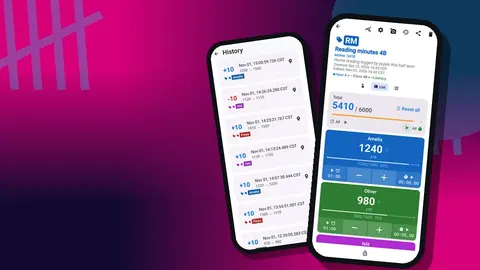
The history screen lists every count event with the step, the exact time, the value before and after, and the tag label. Icons show where a note, photo or location is attached, and you can add a note to an event afterwards.
This is useful when you need specifics later. If a student asks why their total is lower than a friend's, you can see when points were added. If you want to raise a pattern with a colleague, a short note on the relevant events ("after group swap") gives context that numbers alone do not. Note that the history is a list to scroll, not something you can search, so add notes at the time if you expect to need them.
Sharing the data with the class
Many teachers find that showing the class its own numbers is the most effective part of the system. The reward jar counter can be shown on a projected screen at the end of the lesson. Grid view with large tiles is easy to read from the back of the room.
Be selective. Whole-class tallies and behavior categories are fine to show. Per-student tallies usually are not, especially for participation, where a low number can embarrass a quiet student. If you do share a per-student counter, consider collapsed tags or initials only.
Where is class counter data stored?
Counter App stores class counters on the phone, with no account and no Counter App cloud. Android's own device backup settings can still copy app data, so check them against school policy. That still leaves you responsible for the device itself: use a screen lock, and follow your school's rules on storing student information on personal devices. Some schools require a school-issued device for anything with student names.
An export creates a file outside the app, and that file needs the same care. CSV and Excel exports, and the HTML report, should be stored wherever your school keeps similar records, not in a personal downloads folder.
Deleted counters go to the trash and can be restored, which is reassuring when a class counter disappears after an accidental swipe. If you move to a new phone, make a backup ZIP; there is no live sync between devices.
Using the data
Numbers on their own do not change behavior; conversations do. Use the tallies to start them:
- With a student: "You answered four times this week, and your best was Thursday. What was different?"
- With the class: "We needed seven reminders on Monday and three on Friday. What helped?"
- With yourself: if one student never appears in the participation pie, plan a low-stakes way to bring them in.
Every few weeks, export the data so you have a record. The export options let you choose Summary, Events, Notes and Locations and save as CSV or Excel. The summary alone is often enough for a term overview.
Practical notes
- Set up counters on a Sunday, not during the first lesson.
- Use the class code and color consistently across counters, so a glance tells you which class you are in.
- Keep one counter per question. If you start a new question, start a new counter rather than renaming tags mid-term.
- Lock the counter when you hand the phone to a student helper, so stray taps do not alter totals.
- The app has 13 count sounds and 8 vibration styles; a silent vibration is usually the right choice in class.
- Everything used for counting works offline, so a classroom with weak signal is not a problem.
A counter app will not manage your classroom for you. What it can do is make recording fast enough that you actually do it, and clear enough that the data is worth looking at. Get the app at counterapp.online.
Frequently asked questions
Can a teacher give one student several points with a single tap?
Yes. Each Counter App tag has its own step from 1 to 100, so a tag can add 1, 3 or 5 per tap, and the minus button removes exactly that step.
Can a teacher log participation without unlocking the phone mid-lesson?
Yes, after turning on volume-button counting, which works on the lock screen through a foreground service. Test it first, since some devices still display the system volume bar.
Where does Counter App keep classroom behavior data?
On the phone, with no account and no Counter App cloud. Exports, HTML reports and backup ZIPs you create are files you should store under school rules.
Can a teacher see which weekday had the most call-outs?
Yes. A counter's dashboard shows a seven-day activity bar chart, a pie chart by tag and per-tag progress toward targets.
Do teachers pay a subscription for Counter App?
Not necessarily. Counter App — Tally & Clicker is free to download with no ads; try it free for 3 days, then choose a yearly or monthly plan or a one-time lifetime purchase.
Should a class counter track students or behaviors?
A tag per student suits participation and positive points, while a tag per behavior such as "Called out" or "Helped a peer" suits looking at the class as a group.
How can a counter run a class reward jar?
Use one tag with a target such as 50, add one each time the class meets an expectation, and let auto-reset start the next round when the alert sounds.