Counter App

School Event Headcounts with a Phone Tally App
Key takeaways
A school event headcount app should count students by group, not as one total. In Counter App — Tally & Clicker, create one counter per trip or event, add a tag per group with its size as the target, switch on a target alert, and count students past a fixed point such as the coach door.
- A school event headcount is faster and more reliable when students are counted by group, so a missing student shows as one group below its size.
- A school trip in Counter App — Tally & Clicker is one counter with one tag per group, each tag's target set to that group's size.
- Auto-lock on the target suits the final coach count, because an extra accidental tap cannot push a group past its size.
- Counter App logs every headcount with its exact time, which helps answer when the last count was done and supports a trip review.
- Counter App — Tally & Clicker counts offline on Android 12 or later, which matters on coaches, underground and in rural parks.
Every adult who has run a school trip knows the moment: the coach door, the clipboard, forty-three faces and a nagging doubt about whether that was forty-two. Headcounts are simple in principle and hard in practice, because students move, adults get distracted and the count has to happen in noise, rain and crowds. A phone tally app does not make students stand still, but it makes counting faster, gives you a clear "everyone is here" signal and leaves a timed record behind. This guide covers trips, assemblies, sports days and performances.
Why count a school trip by group rather than by total?
A single total is the least useful number on a trip. If you count forty-two out of forty-three, you still have to find out who is missing, and the fastest way is to know which group is short.
So organize headcounts around the groups you already use: tutor groups, activity groups of eight with an adult each, or buddy pairs. A short count per group is quicker and more reliable than one long count of everyone, and a missing student shows up as one group at seven of eight rather than as a vague total.
The same logic applies to assemblies. Counting by year group or by door is more useful than counting the hall.
Setting up a trip in Counter App
Create one counter for the trip, named with the date and destination, such as "Y5 Science Museum 14 Mar". Give it a short code and a bright color so it stands out from your everyday counters, and pin it the day before you leave.
Inside the counter, add a tag per group: "Group A (Ms Patel)", "Group B (Mr Shah)", and so on. Set each tag's target to the size of that group. The counter itself then shows the total against the overall target.
Next, open the counter's settings for steps and targets. Choose count up, and switch on a sound or vibration alert for when a target is reached. Two options are worth thinking about:
- Auto reset returns the value to zero when the target is reached. That suits a day with many headcounts at different checkpoints, because each one starts fresh.
- Auto lock stops further taps once the target is reached. That suits a single important count, such as boarding the coach home, because an extra accidental tap cannot push a group over its size.
Add a description with the emergency contact number and the meeting point. It is one less thing to look up when you need it.
At the checkpoint
When it is time to count:
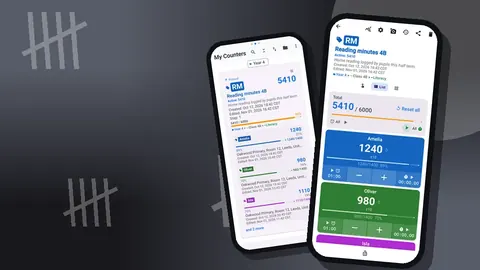
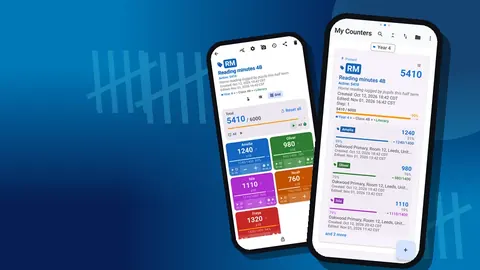
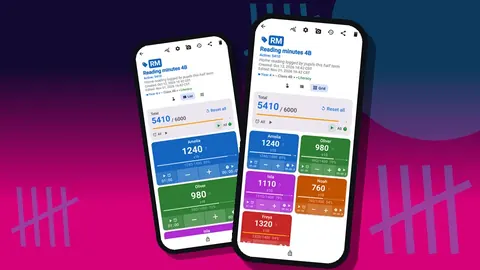
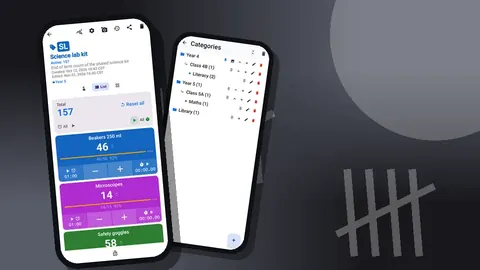
- Open the trip counter in List view. Every group is a row with plus and minus buttons, a value and a progress bar toward the group's target.
- Count each group as students pass you, tapping plus on that group's row.
- Watch for the alert. When a group reaches its target, the sound or vibration confirms it.
- If a group stalls below target, you know exactly which adult to talk to.
Counting as students walk past a fixed point, like the coach door or a gate, is much more reliable than counting a milling crowd. Ask them to come through one at a time.
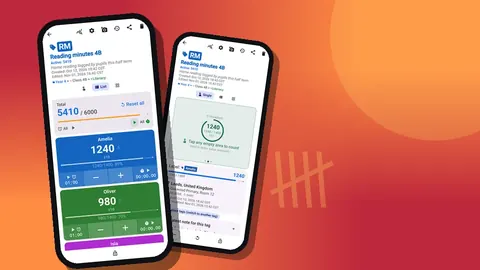
If you prefer to focus on one group at a time, Single view shows a single tag with a large circular counter and its target progress, plus the tag's latest note. It is easy to read in bright sunlight.
How do you count students without looking down?
Watching the students and the screen at the same time is not realistic. Counter App can count with the phone's volume buttons, including in the background and on the lock screen through a foreground service. You can remap the keys and give each key its own sound and vibration. A vibration on each plus is enough to know the count registered while you watch faces.
Volume-key counting is off by default, so turn it on before the trip and test it. Some devices still show the system volume bar when the keys are pressed, which is harmless. The lock-screen notification also offers minus, plus and Stop buttons, which is handy when the phone is in your hand but locked.
Assemblies, performances and sports days
Not every event is a trip, and the setup changes a little.
Assemblies. One counter, a tag per entrance or per year group. Two adults at two doors can count on separate phones and add their totals, or one adult can count each door in turn. The main use is fire safety: knowing how many people are in the hall.
Performances. Audience counts for a school show often matter for capacity limits. Tag per door, with a count-down target set to the hall's limit, so you can see how many places are left. The alert tells you when the room is full.
Sports days. Use one counter per event or per house, and a tag per race or activity, with each house's competitors as the target. Counting students into the start area of each race helps marshals see whether everyone is there before the start.
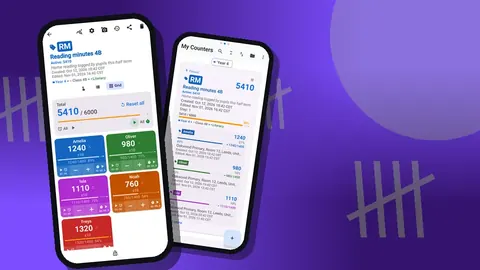
Grid view suits these events: colored tiles, one per tag, each with plus and minus and the target percentage. With four doors or four houses, the tiles are large enough to use in a hurry.
Timing the day
Every tag in the headcount comes with a stopwatch and a timer of its own. On a trip, timers are handy for free-time windows ("ten minutes in the gift shop"), with presets of 30 seconds, 1, 2, 3, 5 and 10 minutes. Countdown beeps warn that time is nearly up, and there are seven alarm sounds and eight vibrations to choose from.
The stopwatch is useful for the opposite question: how long did it take to get everyone from the coach to the entrance? That number is worth knowing for planning the next trip.
Can a headcount app show when students were counted?
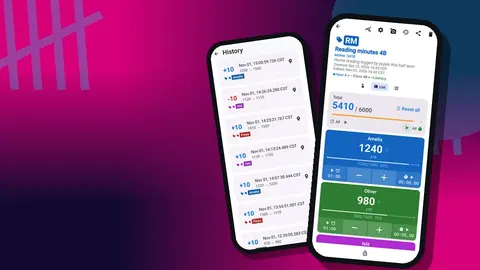
Every count is logged in the history with the step, the exact time and the value before and after, plus the tag label. You can add a note to an event, for example "Group C: one student with first-aider, back 11:40". A tag can also store a place, so you can note where a checkpoint was if it matters.
This record is valuable afterwards. If someone asks when the last headcount was, you can answer precisely. It also helps when reviewing the trip's risk assessment.
Sharing afterwards
After the trip, share the counter as an HTML page, or export it as CSV or Excel. The export dialog lets you choose Summary, Events, Notes and Locations. For a trip record, include Events and Notes so the timeline and any incidents are there.
Keep the export with the trip paperwork. Counter App keeps the trip counter on the phone, with no account and no Counter App cloud, so the exported file is what goes into the trip folder.
Before the trip: a checklist
- Create the trip counter, groups as tags, targets set to group sizes.
- Turn on target alerts, and choose auto reset or auto lock.
- Enable and test volume-button counting.
- Charge the phone and bring a power bank.
- Write the meeting point and contact numbers in the counter description.
- Pin the trip counter so it opens first.
- Brief the other adults, below.
Briefing the other adults
Each adult should count their own group, ideally on their own phone with the same setup. Because there is no live sync between phones, the trip lead can make a backup ZIP of the trip counter and share it; the others import it, with a preview and a choice to replace, copy or skip duplicates. That way every adult starts with the same groups and targets.
Agree on two rules: every adult reports their group's count to the lead at each checkpoint, and nobody leaves a checkpoint until every group has hit its target.
When the trip is over, the lead can look at the dashboard for the trip counter. It shows the total and target, increments against decrements, a seven-day activity chart and a pie chart by tag. A high number of minus taps on one group may mean that group was hard to count and needs a different approach next time.
A hypothetical outing
Picture a Year 5 trip of forty-two students in six groups of seven, with six adults. The lead sets up the counter on Sunday and shares the backup on Monday morning. At the museum entrance, each adult counts their group through the door using volume keys and calls the number to the lead, who taps it into her own counter. At lunch, the 10-minute preset runs twice back to back for a twenty-minute free-time window. On the way back, auto lock is on for the coach count, and the alert sounds six times as each group fills.
This is an illustrative scenario rather than a real school's data, but the routine is realistic for a day out.
Practical details
- Counter App runs on Android 12 or later.
- Counting works offline, which matters underground, on coaches and in rural parks.
- Lock the trip counter when you hand the phone to someone else.
- Deleted counters can be restored from the trash.
- Counter App — Tally & Clicker is free to download with no ads; try it free for 3 days, then choose a yearly or monthly plan or a one-time lifetime purchase.
Get the app at counterapp.online.
Frequently asked questions
Can a trip leader count students without looking at the phone?
Yes. With volume-button counting enabled in settings, the hardware keys add or subtract even on the lock screen, and a vibration confirms each count while you watch faces.
Will the headcount app signal when every school group is back?
Yes, if each group tag has a target equal to its size; reaching it can play a sound or vibrate, with optional auto-reset or auto-lock.
Does a school trip headcount work on a coach without signal?
Yes. Counter App needs no connection for counting; only optional notifications, update checks and map tiles use the internet.
Can a teacher show what time each trip headcount was done?
Yes. The history logs every count with its exact time, notes can be added to events, and an export with the Events section ticked carries the timeline.
Can other adults on a school trip share the same counter?
Not live, as there is no sync between phones. The lead can share a backup ZIP so every adult imports the same groups and targets, then each counts their own group.
How can a school show count its audience against a hall capacity limit?
Use a tag per door with a count-down target set to the hall's limit, so the value shows the places left and the alert marks a full room.
Should a school trip use auto-reset or auto-lock on group targets?
Auto-reset suits a day with many checkpoint counts because each starts fresh, while auto-lock suits one critical count such as boarding the coach home.