Counter App

Count Travel Spending by Category on Android
Key takeaways
To count travel spending by category on Android, make one counter per trip and one tag per spending category, then tap once for each purchase and note the amount on that event. Counter App — Tally & Clicker counts frequency, not money, so the exported events and notes are summed by category in a spreadsheet afterwards.
- A travel budget item counter in Counter App — Tally & Clicker counts purchase events by category, with the amount written as a note on each event.
- Counter App does not add up money, convert currencies or connect to a bank; travel spending totals are calculated in a spreadsheet after export.
- A target with auto-reset on a spending tag, such as three coffees a day, works as a soft limit on how often a traveller buys something.
- The dashboard pie chart for a travel spending counter shows which categories are bought most often, which reveals habits rather than amounts.
Most travellers come home with a vague feeling about money. The trip cost more than planned, but nobody can say exactly where it went. Was it the taxis? The coffee stops? The small souvenirs that never seemed expensive one at a time? A full budget app can answer that, but it asks you to enter amounts, currencies and categories for every purchase, and many people give up after the third day.
This guide describes a lighter method. Instead of logging money, you count purchase events by category and jot the amount in a note. Counter App on Android handles the counting; a spreadsheet at the end handles the sums. It is not accounting. It is a fast, honest record of habits.
Why is travel spending hard to track?
Travel spending has a particular shape. It comes in many small purchases, in unfamiliar currencies, often paid in cash, at moments when you are tired, hungry or distracted. Receipts get lost. Card statements arrive weeks later, mix in fees and exchange rates, and say nothing about what the charge was for.
Detailed tracking fails because it asks for effort at the worst moment. Counting succeeds because it asks for one tap. If you can tell a week later that you bought fourteen coffees, nine taxi rides and six souvenirs, you already know where to cut, even before looking at a single amount.
The method: count events, note amounts
The idea has two layers:
- Count every purchase with a single tap on its category.
- Optionally note the amount on that event, in whatever currency you paid.
The count is cheap and always happens. The note is extra and happens when you have a spare second. Even on days when you skip the notes, the counts still tell a useful story.
Set up a spending counter
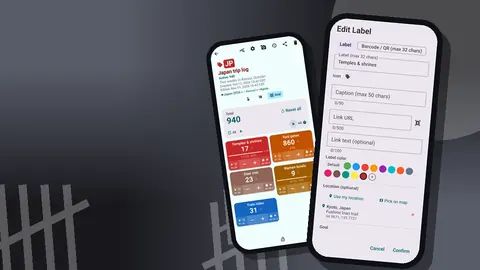
Create one counter per trip, such as "Lisbon week" or "Andes month". Inside, add one tag per spending category. Keep the list short, six to eight categories at most:
- Food and drink
- Coffee and snacks
- Local transport
- Long-distance transport
- Accommodation extras
- Activities and tickets
- Souvenirs and shopping
- Fees and other
Give each tag its own color so the tiles are easy to tell apart. The counter's description can hold the trip dates and your rough budget in words; its notes can hold anything else you want to remember, like a reminder of the exchange rate you are using.
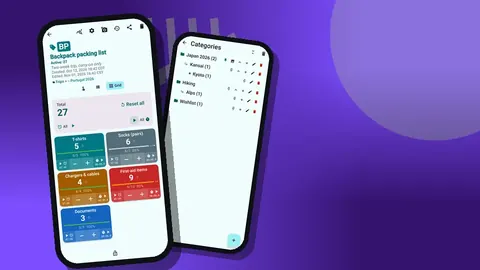
Open the counting screen in Grid view. Each category is now a tile with a value and plus and minus buttons. When you pay for something, tap plus on its tile. If you tapped the wrong one, tap minus.
Adding the amount
After the tap, add a note to the event with the amount and, if useful, the currency: "4.20 EUR" or "3,500 COP, empanadas". Notes attach to individual events, so each purchase can carry its own amount. If a purchase was unusual, write why: "museum, student discount refused".
Some people prefer to add amounts in one batch in the evening, using the history to see each tap. Either approach works.
Soft limits with targets
A tag can have a target, counting up or down, with an optional sound or vibration when it is reached. Targets do not limit money, but they can limit frequency. Set "Coffee and snacks" to a target of 3 per day with auto-reset, and the app tells you when the third one is logged. Auto-lock on reaching the target is also available if you want the tile to resist further taps until you unlock it, which some people find a useful pause before the fourth coffee.
Daily review in two minutes
Each evening, open the history. Every tap is there with the exact time, the step, the value before and after, the tag, and icons for notes, photos and locations. Scroll through the day and check three things:
- Missing notes. Add amounts while you still remember them.
- Wrong taps. A taxi logged as a souvenir is easy to spot in sequence.
- Surprises. If you tapped "Fees and other" four times, look at why.
The history has no search, but one day's events fit on a screen or two, so scrolling is enough.
Reading the notes
The All Notes screen lists every note with its tag label and time and can be sorted. Read it at the end of a few days and the amounts form a rough ledger by category without any typing beyond the notes themselves.
Weekly patterns
The dashboard shows the overview against target, increments versus decrements, a seven-day activity bar chart and a pie chart by tag. For spending, the pie chart is the interesting part: it shows which categories you buy from most often. The bar chart shows which days were busy. A spike on the day you arrived in a new city is normal; a spike on a rest day may be worth a second look.
Remember that the dashboard reflects counts, not money. A category with many cheap taps can dominate the pie while a single expensive train ticket barely shows. That is a feature as much as a limitation: it reveals habits, which are usually what a traveller can change.
How do you turn purchase counts into money totals?
When you want real numbers, export. The export options let you include Summary, Events, Notes and Locations and save to CSV or Excel. In the spreadsheet:
- Keep the events sheet with tag and time.
- Copy the amounts from the notes into a column (they are text, so a quick cleanup may be needed).
- Convert currencies at your chosen rate.
- Sum by tag.
The result is a per-category spend that took a few taps a day and ten minutes at the end. An HTML report is another option when you want to share a summary with a travel partner, and it can include photos.
Small habits that make it work
- Tap before you put the wallet away. The moment between paying and walking off is the only reliable one.
- Use fewer categories. Eight is plenty. More categories mean more hesitation.
- Keep shared costs in a separate counter. If you split costs with a partner, a second counter for shared purchases keeps the arithmetic simple later.
- Use locations when it matters. Tags can store GPS, a point on a map, or a typed place. Typing works offline. A location on "Long-distance transport" can help reconstruct a route.
- Photograph receipts that matter. Each tag can hold up to six photos, so keep them for the big items, not every snack.
- Lock the counter at night. A locked counter ignores accidental taps in a pocket or bag.
If your hands are full at a market stall, volume-button counting is an option. It is off by default; once enabled, the volume keys count, also on the lock screen, and keys can be remapped. Certain phones may still display the system volume bar on each press.
Privacy and backups
Spending data is personal. Counter App stores it on the phone, with no account and no Counter App cloud. That also means backing it up is up to you. A backup ZIP can include photos and lets you choose which counters to include. If you change phones, import the ZIP and choose replace, copy or skip for duplicates in the preview. There is no live sync between phones.
What can the counting method not do?
It is worth being clear about the limits. Counter App does not convert currencies, does not sum money and does not connect to a bank. The counts measure how often you buy in each category, and the notes hold amounts as text. Anything involving totals happens in a spreadsheet after export.
For many travellers that is exactly the right trade. Precise budgeting on the road is effort that competes with the trip itself, while a tap per purchase is barely noticeable. If you need receipts for work expenses or reimbursement, photograph them on the relevant tag and keep the HTML report, which embeds photos, alongside your spreadsheet.
An illustrative week
Hypothetical example. A traveller spends a week in a coastal city with eight spending tags. By day three, the dashboard pie shows coffee and snacks as the largest slice by count, followed by local transport. The notes reveal that the transport taps are mostly short taxi rides at night. On day four the traveller buys a transit pass, and the local transport tile moves much less for the rest of the week. At home, the exported events and notes produce a per-category total in a spreadsheet, and the coffee line is the one that gets a target on the next trip.
The figures in this example are invented; the point is that counting surfaced the pattern early enough to act on it.
Wrapping up
Count every purchase with one tap, note amounts when you can, review the history each evening and export at the end. Counter App needs Android 12 or newer and is free to download with no ads; try it free for 3 days, then choose a yearly or monthly plan or a one-time lifetime purchase. For the rest of trip planning, see the counted packing list. Get the app at counterapp.online.
Frequently asked questions
Does Counter App add up money amounts?
No. It counts events: each purchase is one tap on a category tag. You write the amount in a note on that event, and you can export the notes and events to CSV or Excel to add up amounts in a spreadsheet.
Can I set a daily limit on purchases?
You can set a target on any tag, counting up or down, with an optional sound or vibration alert when it is reached. A target of five coffees a day, for example, works as a soft limit on frequency.
Does counting travel purchases need mobile data abroad?
No. Purchase tallies are recorded offline, and the app only connects for optional notifications, update checks and map tiles, so roaming can stay off.
Can I record where I bought something?
Tags can store a GPS location, a point picked on a map, or a typed country, city and place.
Is my travel spending data uploaded to a Counter App server?
No. Counter App needs no account and has no Counter App cloud, so spending counts and amount notes are stored on the phone. If Android device backup is turned on, the system itself may include app data in that backup.
Can the app convert currencies for travel purchases?
No. Write the amount and currency in the event note, then convert at your chosen rate in the spreadsheet after exporting the events and notes.
How many spending categories should a traveller use?
Six to eight categories, such as food, coffee, local transport and souvenirs, are usually enough; more categories make each tap slower to decide.