Counter App

Backpacker Gear Tracking on Android: A Living Inventory
Key takeaways
Backpacker gear tracking on Android works best as a living inventory rather than a one-time packing list. With Counter App — Tally & Clicker, a traveller keeps a counter per gear system, logs each lend, loss, replacement and repair with a note or photo, audits the pack weekly and backs up the list to a second device.
- Backpacker gear tracking in Counter App — Tally & Clicker works as a living inventory: lent, lost, replaced and repaired items are logged as they happen.
- A backpacker can organize gear by system, such as sleep, cook, clothing and electronics, with one counter per system and a tag per item type.
- Notes on minus events, such as who borrowed a stove and where, explain gaps in the gear count at the next weekly audit.
- A backup ZIP copied off the phone every week or two protects a long-trip gear inventory against a lost or stolen phone.
Long trips change your gear. The pack that left home in March is not the pack crossing a border in July. Socks wear through, a charger gets left behind in a bus terminal, a travel friend borrows your stove and leaves for another island with it. A packing list cannot keep up with that, because it describes one moment. What a backpacker needs is a living inventory: a record that is updated as things happen, so at any point you can say what you have and how it changed.
This guide shows how to keep that kind of inventory on an Android phone with Counter App, without signal, cloud accounts or spreadsheets on the road.
How should a backpacker organize gear?
Experienced backpackers think of gear as systems, not as a long list of objects. A typical breakdown:
- Sleep: sleeping bag, liner, mat, pillow.
- Cook and water: stove, pot, spork, bottles, filter.
- Clothing: base layers, mid layers, shell, socks, underwear.
- Electronics: phone cables, power bank, adapters, headlamp.
- Health: first-aid items, medications, sunscreen.
- Documents: passport, cards, copies, insurance details.
Systems matter because failures cluster. If the sleep system is missing a piece, the whole night suffers; if you have one sock too few, you barely notice. Tracking by system lets you see at a glance which part of the pack is weakened.
Setting up the inventory
Create a category for the trip, for example "Southeast Asia 2026", and a sub-category per region or leg if the route is long. Inside it, decide on one of two structures:
- One counter per system. "Sleep", "Clothing", "Electronics" and so on, with a tag per item type. This suits a gear-heavy trip with camping.
- One counter for the whole pack. Each tag is an item type. This suits light hostel-to-hostel travel where the pack is small.
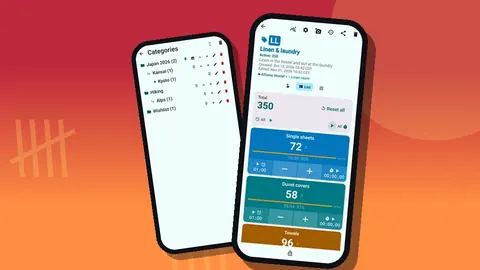
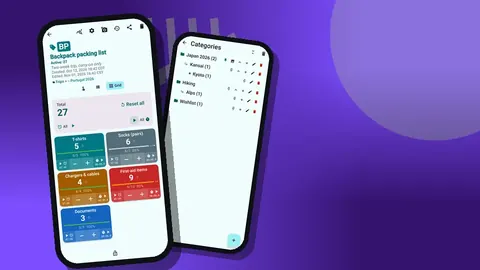
Categories go three levels deep and can be colored, pinned and reordered, so a deep structure like Trip > Leg > System is possible if you want it. Most people find two levels enough.
Item types as tags
Each tag is an item type with a target: "T-shirts: 4", "Socks: 5 pairs", "Chargers: 3", "First-aid items: 12", "Documents: 4". Give each system's tags one color so the counting screen groups visually. The counter's description can hold the trip dates and the counter's notes a short gear philosophy, such as "replace, do not duplicate".
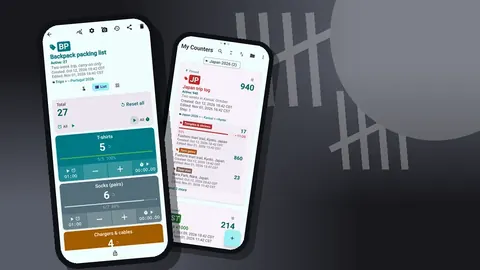
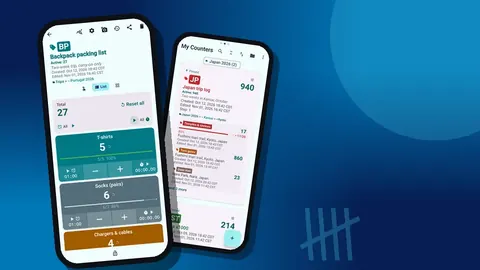
The List view shows every tag as a row with minus and plus buttons, its value and target progress. Grid view turns the same tags into colored tiles, which some people find easier to scan when the phone is propped on a bunk.
Tracking the messy stuff
The point of a living inventory is to record change as it happens. Four kinds of change cover almost everything.
Lent, lost and replaced
When you lend an item, minus one and add a note to the event: "lent headlamp to Mara, Hanoi hostel". When it comes back, plus one. If it never returns, the note explains the gap later. A lost item is a minus with a note about where and when you last saw it. A replacement is a plus with a note about what you bought and, if useful, where.
Every event appears in the history with the exact time, the step, the value before and after, and the tag. Icons show which events carry notes, photos or locations. You cannot search the history, but scrolling a week of gear changes takes seconds.
Repairs and wear, in pictures
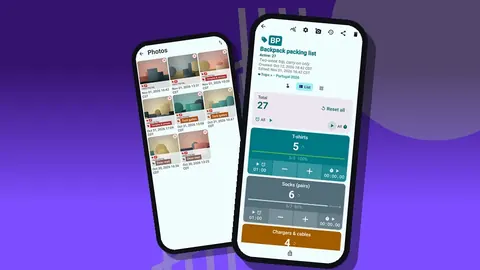
Some changes are not about quantity. A shell jacket with a taped tear is still one jacket, but you want to remember its condition. Add a photo to the tag (up to six per tag) and mark the repair with the photo editor's brush or text. The all-photos gallery shows every picture with its tag and date, which makes a quick visual check of gear condition possible before a demanding leg.
Photos are also useful evidence if something goes wrong with a purchase or a claim, because they show the item before the trouble.
Notes as a trip journal for gear
Notes attach to tags and to individual events. Over weeks they become an informal gear journal: what failed, what you never used, what you wish you had brought. The All Notes screen lists them with tag labels and times and can be sorted. Read it on a long bus ride and you will often spot a pattern, such as the adapter that keeps getting forgotten in sockets.
Where it happened
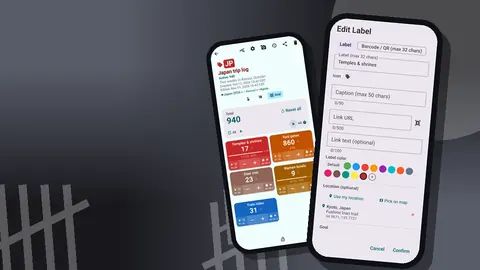
Tags can carry a location: GPS, a point picked on a map, or a typed country, city and place. Typing works offline, while the map needs tiles from the internet. Recording where you bought a replacement filter, or the guesthouse holding a bag you left in storage, is useful when plans change.
How do you run a weekly gear audit on the road?
Once a week, ideally on a rest day, do a full recount. Empty the pack, then work through each counter in List view. Where the count differs from what the app says, look at the history: the explanation is usually a lend, a loss or a mistake from a tired evening. Fix the value with plus or minus and note why.
Then open the dashboard. It shows the overview against target, increments versus decrements, an activity bar chart for the past seven days and a pie chart by tag. A week with many decrements on clothing is a sign you are wearing things out faster than planned. A tag with no activity for weeks may be dead weight worth posting home or giving away.
A few audit questions are worth asking each time:
- Is any system below target in a way that matters for the next leg?
- What has not been used since the last audit?
- Are any lent items overdue?
- Did any item get replaced twice? If so, buy better next time.
Making the phone fit the road
Settings are worth five minutes before departure. Pick a theme skin and light or dark mode that suits reading in a dim dorm. Adjust the size preset and font scale (0.7 to 1.5) if you count at arm's length. Choose one of five date formats so history timestamps read naturally. The app has 37 languages and an in-app language picker, which helps if you share the phone with a travel partner who prefers another language.
If you often count while carrying things, volume-button counting can be turned on. Switched off at first, it keeps counting in the background and from the lock screen once enabled.
Guarding the data
Counters can be locked against accidental taps, which matters when phones get passed around a common room. A deleted counter goes to the trash and can be restored. Categories have their own trash too.
How do you back up a gear list between countries?
Phones get stolen, dropped and drowned on long trips. The data is stored on the phone, with no account and no Counter App cloud, so a backup is your responsibility. Make a ZIP backup every week or two, with or without photos, and optional photo compression to keep it small. Choose which counters and categories to include. Copy the ZIP somewhere off the phone, such as a USB stick or a laptop.
If you replace the phone, import the ZIP on the new one. The import preview shows counts and lets you choose replace, copy or skip for duplicates, so you do not end up with two copies of the same gear list. There is no live sync between phones; the backup ZIP is the bridge.
Mistakes that break a living inventory
A living inventory only works if it stays close to reality. Three habits tend to undermine it on long trips.
Batching updates. Telling yourself you will log the lent stove later almost guarantees you will forget the detail that matters, such as who has it. Tap and note at the moment it happens, even if the note is two words.
Renaming tags halfway through. If "Chargers" becomes "Cables and chargers" in week five, the history and any export split one item type into two. Decide names before departure and keep them. If the category really changes, add a new tag and leave the old one at zero.
Letting targets drift silently. When you give away a fleece because the climate turned tropical, change the target as well as the count, and note why. Otherwise every audit will flag the same "missing" fleece, and you will start ignoring the flags, including the real ones.
A fourth, smaller trap is counting in the wrong counter. Colors and short codes on each counter help: if the Electronics counter is blue with the code ELEC, a quick glance before tapping avoids logging socks as cables.
An illustrative month
Hypothetical example. A backpacker sets off with five counters: Sleep, Cook, Clothing, Electronics and Documents. In week one, a charging cable fails and is replaced in a market, logged as a minus and a plus with a note. In week two a friend borrows a pot for a multi-day trek, noted on a minus event. In week three, the weekly audit shows Clothing down two items after a laundry mix-up; the history confirms when the count dropped. In week four, the pot comes back, and a dashboard glance shows that the first-aid tag has barely moved, so some of it gets swapped for spare socks.
None of these moments is dramatic. Together they are the difference between knowing your pack and hoping you know it.
Where to start
Set up the systems before you leave, do a full count into the bag, and decide on your weekly audit day. Everything else happens as small taps when things change.
On Android 12 or newer, Counter App is free to download with no ads; try it free for 3 days, then choose a yearly or monthly plan or a one-time lifetime purchase. For pre-departure packing, see the packing list that counts, and for camera-specific kit, read about the adventure photography gear counter. Get the app at counterapp.online.
Frequently asked questions
How is a living inventory different from a packing list?
A packing list is checked once before you leave. A living inventory keeps changing during the trip: items get lent, lost, replaced or repaired, and every change is logged in the history with its time.
Can I organize gear by system, such as sleep, cook and clothing?
Yes. Use categories with up to three nesting levels, or one counter per system with a tag per item type. Backpacking categories can also take their own colors and be pinned or moved up and down the list.
Does backpacker gear tracking work in hostels with no Wi-Fi?
Yes. Every counting feature runs offline in a hostel dorm, and the gear list is stored on the phone with no account. A connection is only needed for optional notifications, update checks and map tiles.
Can I move my gear list to a new phone mid-trip?
There is no live sync, but you can make a backup ZIP with photos and import it on another phone. The gear backup import previews the counts first and asks whether to replace, copy or skip each duplicate.
Can I record where I bought a replacement item?
Each tag can store a location by GPS, a point on a map, or a typed country, city and place, and events can carry notes.
Can a backpacker search the gear history?
No. The history in Counter App has no search, but it lists each change with its time, tag and note icons, so a week of gear changes is quick to scroll.
How do I log that a travel friend borrowed an item?
Press minus on the item's tag and add a note to that event, such as the friend's name and the place. When the item comes back, press plus and the gap closes.